Part one: for students
1. Welcome to Elvyn
Elvyn lets you practise a short spoken interview with a simulated patient, in English or French. The patient is a video avatar that listens and answers out loud. You prepare, talk with the patient until you end the conversation or your time runs out, then download what was said and answer a short survey.
This manual describes every screen. Part one is for students. Part two is for course staff who run a cohort. Part three is for the platform administrator (see 1.4 Who can read each part). If you are in a hurry, start with Quick start for students or Quick start for course staff: your first class. If you read only one chapter, read 3. Concepts.
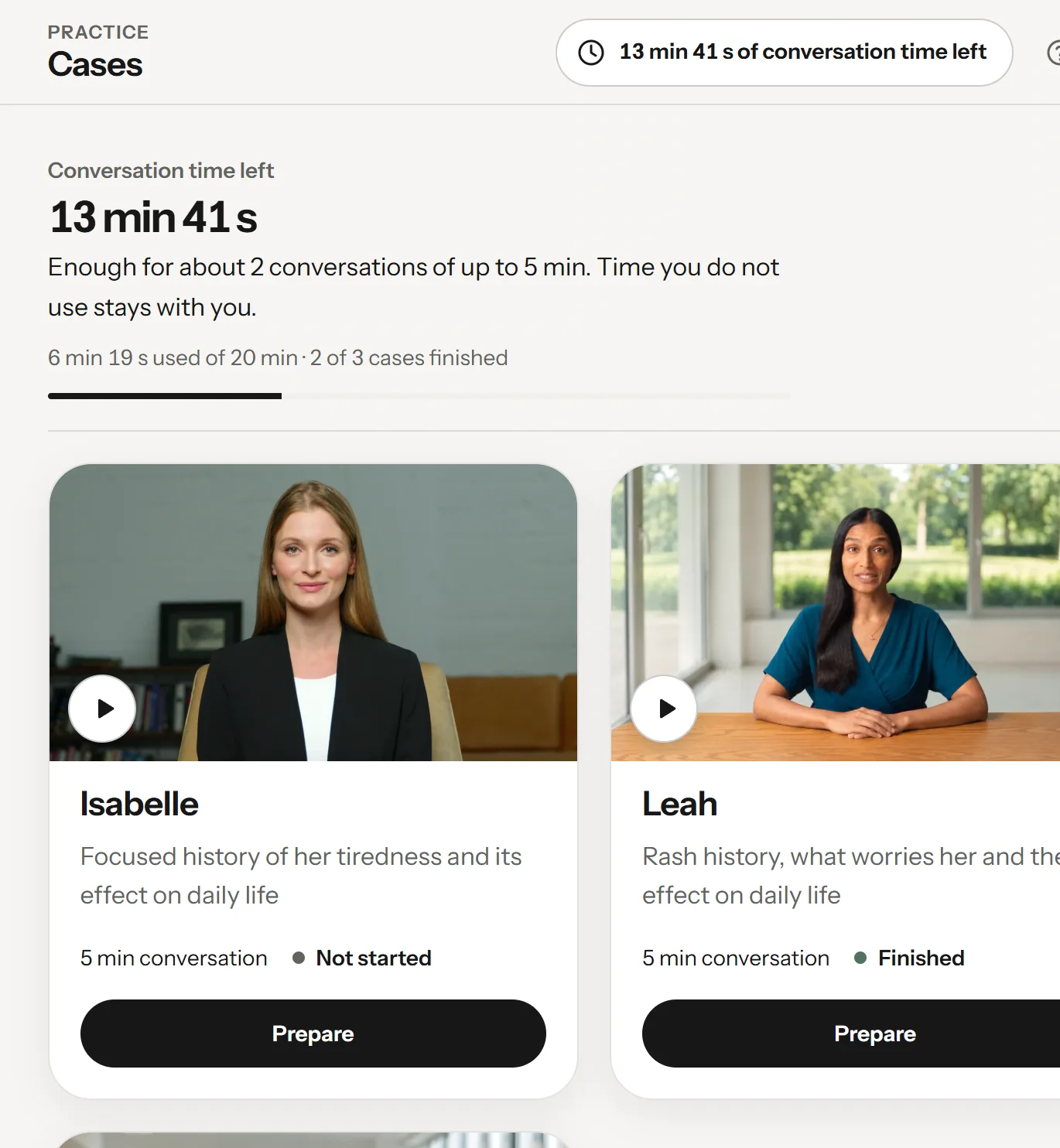
The Cases page, where every conversation starts.
- Conversation time left, and what it is enough for
- The same time, on every Practice page
- A case card: the patient, the focus, the length and the status
- Prepare opens the brief
Every conversation starts on Cases. The band at the top shows your Conversation time left in this cohort, with one sentence that says what it is enough for. The top bar shows the same time on every Practice page. Until your first conversation, three numbered steps sit above the cards, with Watch the walkthrough, a short guide video; Fold to one line or Hide these steps puts them away. Each patient has a card with a portrait, what to focus on, the length of your next conversation and whether you have finished it. Prepare opens the brief for that patient.
1.1 What Elvyn is
Elvyn is a practice tool for nursing communication. Your course staff chose the patients and gave you a number of minutes to use. Each patient has a short handout that tells you your role, the setting and what to find out.
The patients were written by your course’s teaching team. The avatar service, LiveAvatar, turns that description into a face and a voice. The patient answers in the language you choose for the conversation.
Elvyn is made by RMGN. It is a pilot: about 250 students, a few minutes each, three patients.
1.2 What Elvyn is not
- It is not a clinical system. Nothing you say goes into a health record, and nothing the patient says is medical advice.
- It is not an exam. Elvyn does not grade you. Your course staff see that you had a session and how long it lasted. They can read what was said only if your cohort allows it, and Elvyn tells you before you start (see 3.3 Conversations and transcripts).
- It can be wrong. The patient is generated by AI. It can say something inaccurate, forget a detail or answer in an unexpected way. Treat it as practice, not as a model answer.
Use fictional details. Do not share real patient information or other sensitive personal information during a conversation.
1.3 What you need
- A recent browser. Use Chrome or Edge on a computer if you can: that is what Elvyn is tested with. Recent Firefox and Safari should work too. Keep the tab open for the whole conversation.
- A microphone. A headset is best, because it keeps the patient’s voice out of your microphone. The built-in microphone of a laptop works in a quiet room.
- A quiet place. The patient hears everything your microphone picks up, including other voices.
- A stable connection. The patient is streamed as video. Wi-Fi at home or on campus is usually enough; a weak mobile signal can drop the conversation.
- Your email address on the course list. You sign in with the address your course staff added. See 2.1 Signing in.
Good to know
The clock starts when the patient connects, not when you press Start. Reading the handout and testing your microphone use none of your conversation time.
1.4 Who can read each part
Anyone can read part one, the student quick start, 18. Data and privacy reference and 19. Glossary, signed in or not. Part two and the staff quick start are for people who manage a cohort and for platform administrators. Chapters 15 to 17 are for platform administrators only.
A chapter you cannot read stays in the list with a lock. Signed out, its page says This part is for course staff (or This part is for platform administrators) with Sign in to view, which brings you back to the chapter after you sign in; Sign in to view staff chapters sits at the foot of the chapter list. Signed in without access, the page says so and suggests asking your course staff. Search and Download PDF cover only the chapters you can read.