Part one: for students
2. First steps
This chapter takes you from the sign-in page to the Cases page, and shows where everything is.
2.1 Signing in
Elvyn has no passwords. You sign in with a six-digit code sent to your email.
- Open the address your course staff gave you. The page says Sign in and “Use the email on your course list. We will send a six-digit code.” Enter your email in Email address: the address your course staff added to the list, usually your school address.
- Press Send sign-in code. The page changes to Check your email.
- Find the email with the code. Enter the six digits in Verification code and press Sign in.
On a computer, a preview beside the form plays four short scenes of Elvyn: choose a patient, read the brief, talk, and download what was said. Pause preview stops it. On a phone it sits above the form. How Elvyn works, under the form, opens this manual. Not on the list? Contact your course staff. is there for anyone who cannot sign in.
If the code does not arrive after a minute or two, check your junk folder, then press Send a new code (it shows a countdown until you can ask again). If you typed the wrong address, press Use a different email.
After you sign in, Elvyn opens Cases. That browser stays signed in for a while; when Elvyn asks you to sign in again, repeat these steps. On a shared computer, sign out when you finish (see 8.6 Signing out).
Good to know
A code works once. If you get “That code could not be verified”, check the six digits, or ask for a new code if it has expired.
2.2 When you are not on a list
Nobody can use Elvyn unless their email is on a course list. If you sign in with an address that is not on one, you see Your email is not on a course list , with the address you used.
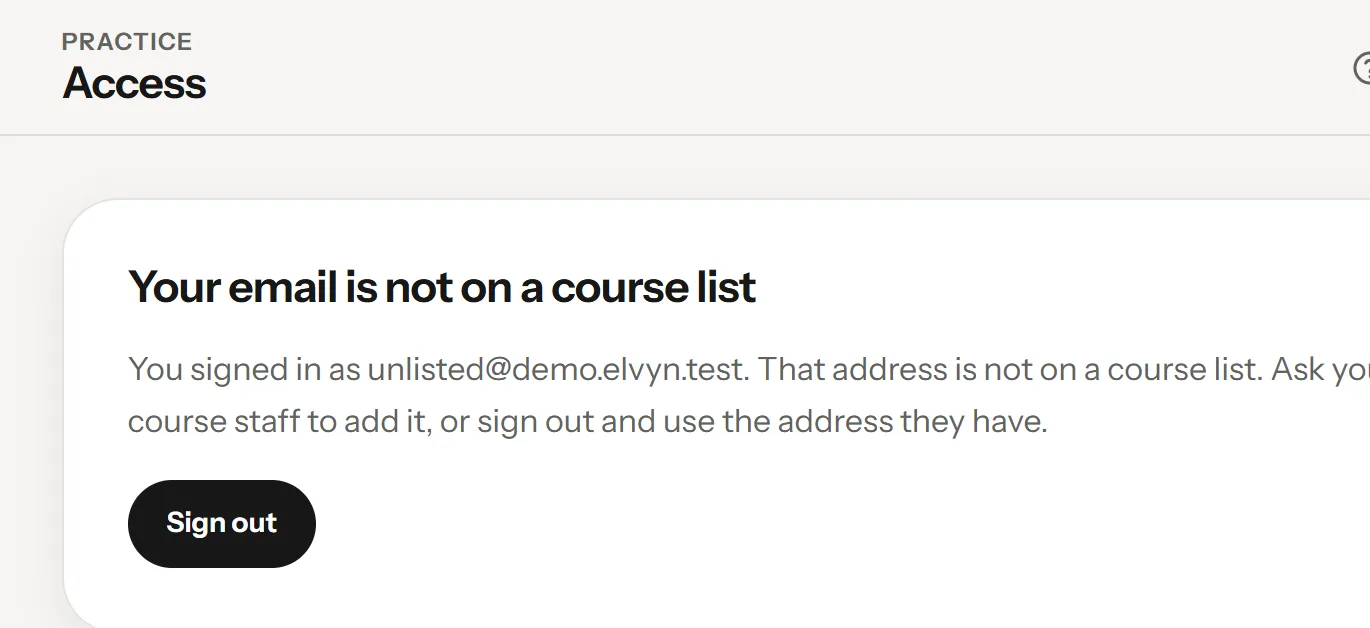
What you see when the address you signed in with is not on any list.
- The message, with the address you used
- Sign out and use another address
This almost always means one of two things:
- You used another address. For example a personal address instead of your school one. Press Sign out and sign in with the address your course staff have.
- The list has a typo, or you were not added yet. Write to your course staff with the address you want to use. Once they add it, sign in again.
Two other messages can appear after sign-in. Each needs one action:
| You see | What to do |
|---|---|
| This email is linked to another sign-in | Ask your course staff to reset your sign-in, then sign in again. |
| Your email address is not verified | Sign out, then sign in again with the six-digit code. |
2.3 Choosing a language
Elvyn’s screens are in English and Canadian French. Two choices are separate:
- The language of the screens. Use the language switch at the bottom of the sidebar (on a phone, in the bar at the top of the page). It names the other language: Français or English. The page you are on reloads in that language. The address shows it too:
/en/or/fr/. - The language of the conversation. You choose it on the Prepare page for each conversation, under Conversation language (see 4.3 Language and microphone). You can read the screens in English and talk with the patient in French, or the other way round.
2.4 Finding your way around
On a computer, a sidebar on the left holds everything. Its top says Elvyn and Practice, the area where you practise with patients. On a phone, the same destinations sit in a bar at the bottom of the screen.
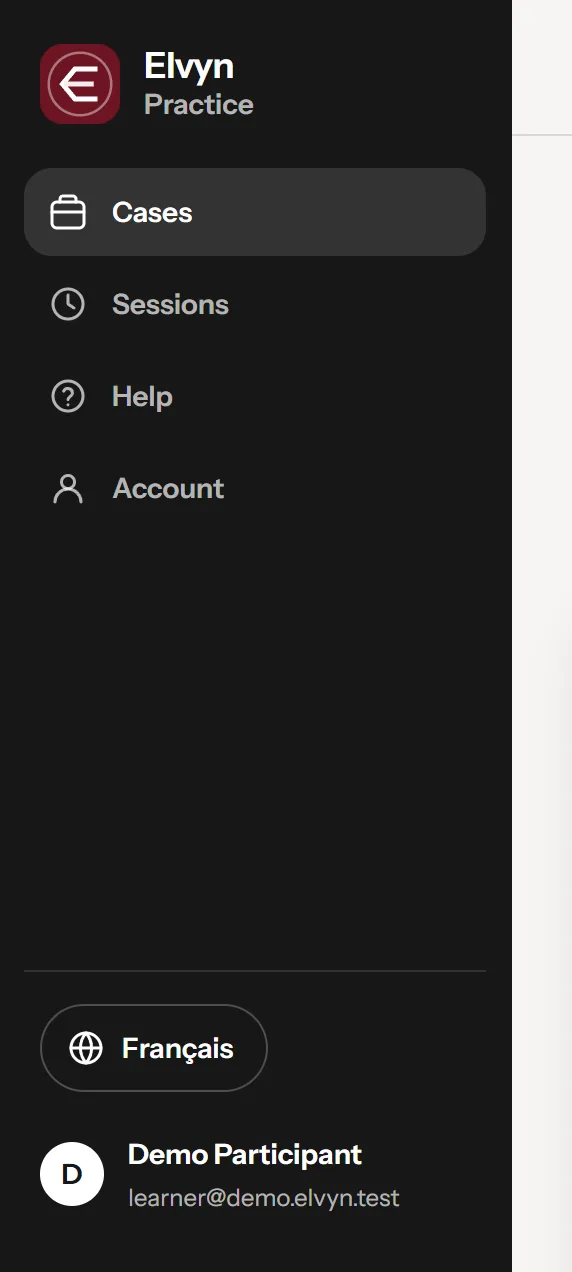
The sidebar.
- Cases: your minutes and patients
- Sessions: every conversation you had
- Help: this manual and the guide videos
- The language of the screens
- Account: your settings and Sign out
- Cases is the start page: your conversation time and the patients you can talk with.
- Sessions lists every conversation you have had, with its transcript and its summary (see 7. Sessions).
- Help opens this manual and the guide videos. The manual opens in its own page; Back to Elvyn at the top returns to Cases.
- The language switch changes the language of the screens.
- Account holds your email, language, patient memory, guide video setting, and Sign out (see 8. Account). Your name at the foot of the sidebar opens it too.
On every Practice page, the top bar shows your time left, for example 10 min left. Press it to go back to Cases. If you are on more than one cohort’s list, it adds up their time and says so, for example “in 2 cohorts”.
If you also manage a cohort, Elvyn gives you a second area, Course staff, and a switcher under Elvyn at the top of the sidebar: Practice and Course, plus Platform for platform administrators. On a phone, press the tile at the top left to switch. See 10. The Course staff area.
The conversation itself opens full screen, without the sidebar. You return to the sidebar when it ends.