Part one: for students
4. Preparing for a conversation
Every conversation starts on the Prepare page. Nothing you do here uses minutes: take the time to read the brief and check your microphone.
Tour
Your first conversation
From Cases to the room: choose a patient, prepare, start and end.
Step 1 of 9: Cases opens on your conversation time left and what it is enough for; choose a patient below to begin.
- Cases opens on your conversation time left and what it is enough for; choose a patient below to begin.
- Choose Prepare on a patient’s card to open their brief.
- Read the brief to the end, then set up the conversation on the right.
- Choose English or French; the patient speaks the language you pick.
- Press Test microphone and speak; the status changes to Working when Elvyn hears you.
- Tick the three statements, including the one about not sharing real patient information, to unlock Start.
- Check how much of your time this conversation can use, then press Start conversation; the clock starts when the patient connects.
- Talk with the patient while the clock counts down the time left in this conversation.
- Press End conversation when you are done; Elvyn asks you to confirm, then opens your summary.
4.1 Opening a case
On Cases, press Prepare on a patient’s card. The Prepare page opens with “Step 1 of 2: Prepare” at the top : the conversation is step 2.
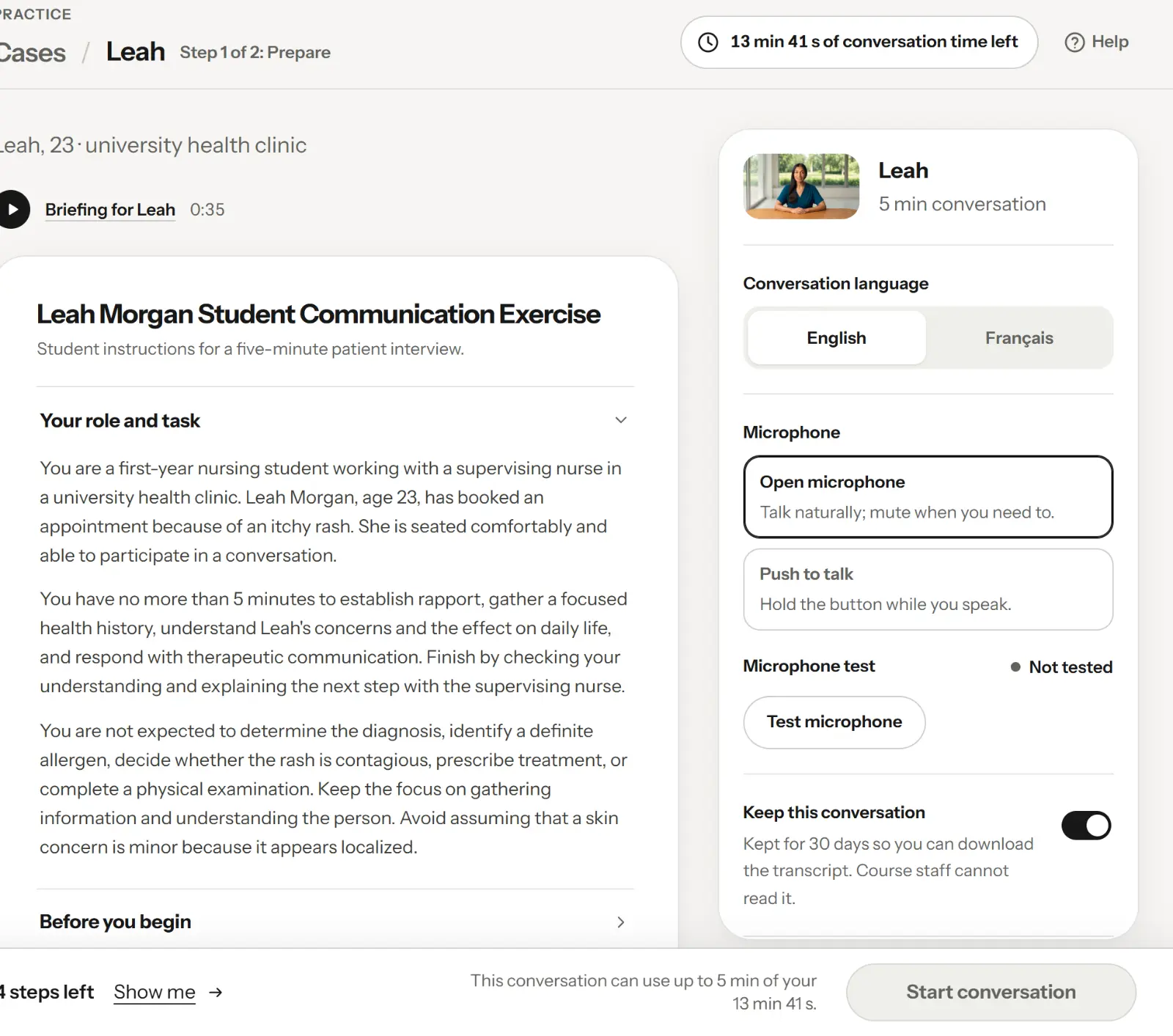
The Prepare page: the brief on the left, your settings on the right, the Start bar at the bottom.
- Where you are: step 1 of 2
- The brief: read it all
- Your settings for this conversation
- The Start bar
On a wide screen the page has two columns: the brief on the left and the panel with your settings on the right. On a narrower window or a phone, the panel comes before the brief. The Start bar stays at the bottom of the window.
4.2 The brief
The brief is the handout your course staff wrote for this patient. It tells you your role, the setting, what you should find out and how long you have. Read all of it before you start: the patient answers as the person it describes, and expects you to behave as the role it gives you.
If your conversation is in the other language than the brief was written in, a note says “Elvyn translated this handout from the original written by course staff.”
Some patients have a briefing clip, a short video about this conversation, above the brief. It opens in a player over the page; press Escape or the close button to return.
Good to know
The brief can mention a length, such as five minutes. The length that applies is the one on the case card and in the Start bar: see 3.2.2 Why a conversation can be shorter than your conversation time.
4.3 Language and microphone
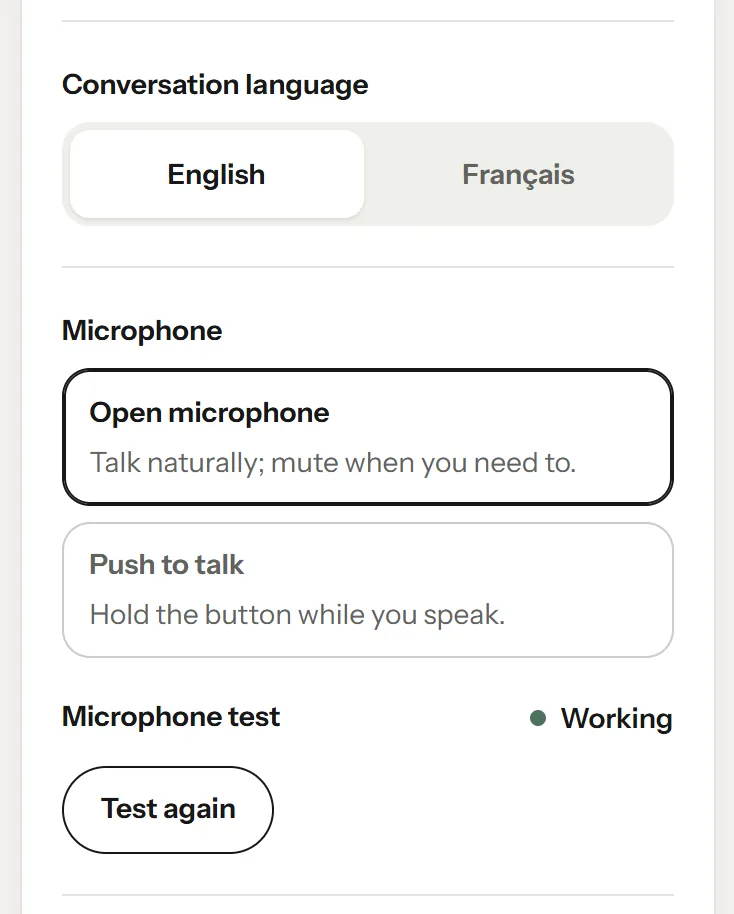
Conversation language, microphone mode and the microphone test.
- Conversation language
- Open microphone or push to talk
- The microphone test and its status
- Test again
Conversation language sets the language the patient speaks and expects: English or Français. It starts on the language of your screens. You can choose either, whatever the language of the brief.
Microphone sets how the patient hears you:
- Open microphone: talk naturally. The patient listens all the time and answers when you pause. You can mute during the conversation.
- Push to talk: the patient hears you only while you hold the talk button. Use it in a noisy place, or if the patient keeps answering before you finish.
4.4 The microphone test
Press Test microphone and say a few words. Your browser asks for permission to use the microphone the first time: allow it. The level bar moves while you speak, and the status changes:
| Status | Meaning |
|---|---|
| Not tested | You have not run the test yet. |
| Listening | The test is running. Say a few words. |
| Working | Elvyn heard you. This step is done. |
| Blocked | The browser refused the microphone. Allow it in the address bar, then press Test again. |
| Not found | No microphone is connected. Connect one or a headset, then press Test again. |
Test again runs the test once more. The test runs in your browser only. Nothing is sent or recorded.
4.5 Keeping the conversation, and memory
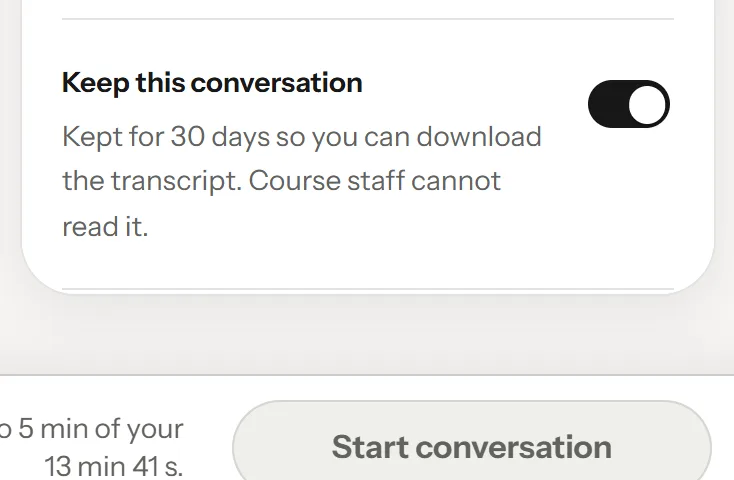
Keep this conversation, and the patient memory switch when the platform offers it.
- Keep this conversation
- How long it is kept, and whether staff can read it
- Patient memory (only when the platform offers it)
Keep this conversation decides whether there will be a transcript. The line under it says how many days the conversation is kept and whether course staff can read it. Turn it off and the line reads “Not kept: there will be no transcript.” The details are in 3.3.3 Keep this conversation.
When the platform allows patient memory, a second switch appears : Let patients remember your earlier conversations. It is your saved choice for every patient, not only this one. It works only while Keep this conversation is on. See 3.4 Patient memory.
4.6 The three statements
Under Before you start, tick the three statements:
- I understand this is an AI-generated simulation and may contain inaccurate or unexpected responses.
- I will not share real patient information or other sensitive personal information.
- I understand that I can end the simulation at any time.
You confirm them before each conversation.
4.7 The Start bar
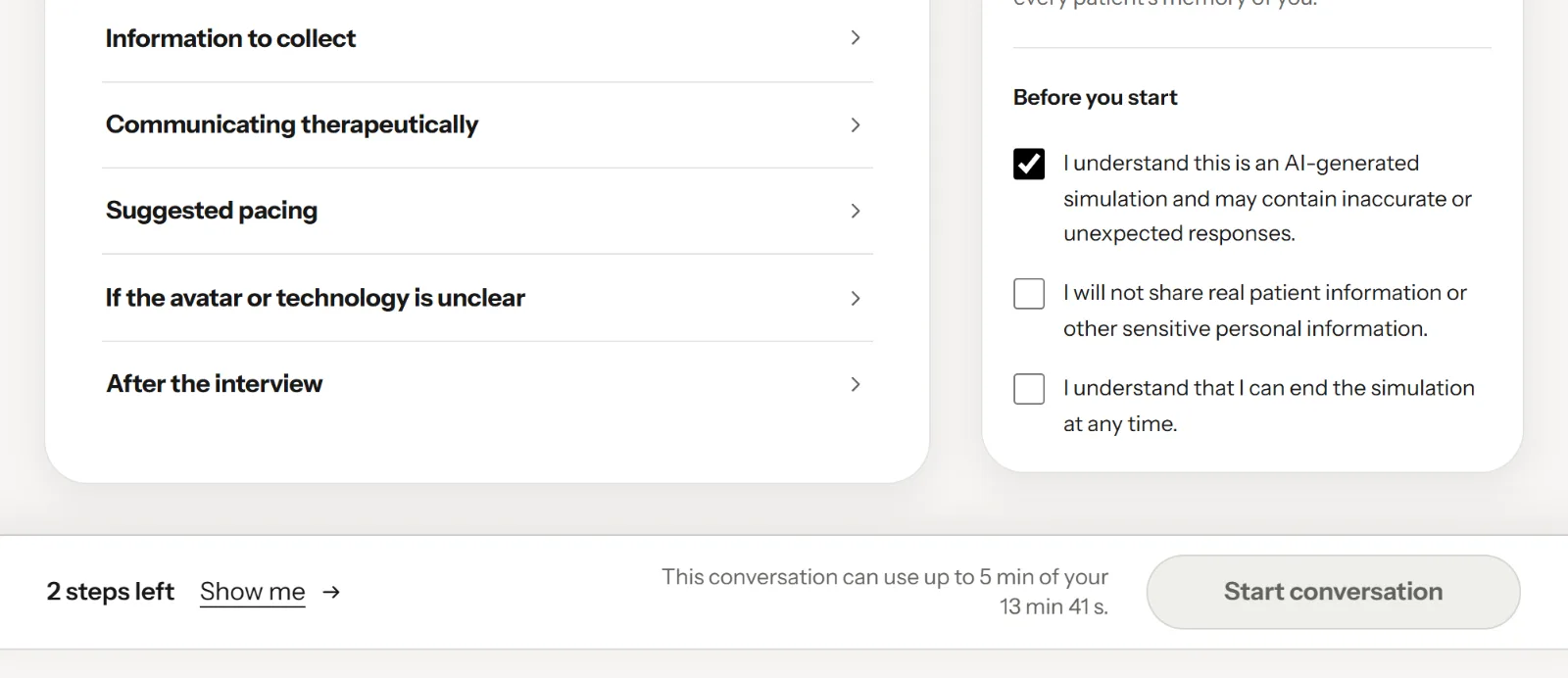
The Start bar with steps left and Show me.
- The three statements
- Steps left
- Show me: goes to the next missing step
- Start conversation, available when ready
The Start bar stays at the bottom of the page. It counts what is left to do: the microphone test and each of the three statements count as one step, so it starts at “4 steps left”. In the figure the test is done and one statement is ticked, so it says “2 steps left” .
- Show me scrolls to the next step still missing and puts the focus on it.
- When everything is done the bar says “Ready. The clock starts when Leah connects.” and Start conversation becomes available.
Next to the button, one line says how much of your time this conversation can take, for example “This conversation can use up to 5 min of your 10 min.” It is the length on the case card, out of your conversation time left (see 3.2.2 Why a conversation can be shorter than your conversation time).
Press Start conversation. The button shows “Starting…” while Elvyn reserves your time and asks the avatar service for a connection, then the conversation opens.
4.7.1 When Start does not work
| Message | What to do |
|---|---|
| “Elvyn is busy. Trying again in 5 s.” | Wait. Many people are starting at once; Elvyn tries again by itself. |
| “You already have a session open. End it from Cases.” | You can have one conversation at a time. Go to Cases and end the open one. |
| “You have no conversation time left in this cohort.” | Ask your course staff for more minutes. |
| “Sessions cannot start right now. Try again in a few minutes.” | The platform is in maintenance, the cohort is not open, or the avatar service is unavailable. Try later. |
| “You cannot start this case. Contact your course staff.” | Your access to the cohort is suspended, or the case is no longer offered. |