Part one: for students
9. Troubleshooting
Each section names a problem, its usual cause and what to do. If nothing here helps, write to your course staff with the time it happened and what you saw on screen.
9.1 The code email does not arrive
- Wait a minute or two, then look in your junk or spam folder.
- Check the address on the sign-in page. If it is wrong, press Use a different email.
- Press Send a new code. If you see “Too many attempts. Wait a moment before trying again.”, wait a minute first.
- School email systems sometimes hold messages from new senders for a while. Try again a little later.
9.2 “Your email is not on a course list”
You signed in with an address that is not on any course list. Press Sign out and use the address your course staff have, or ask them to add the one you used. See 2.2 When you are not on a list.
9.3 The microphone is blocked
The microphone test says Blocked when your browser refused access, with what to do under it .
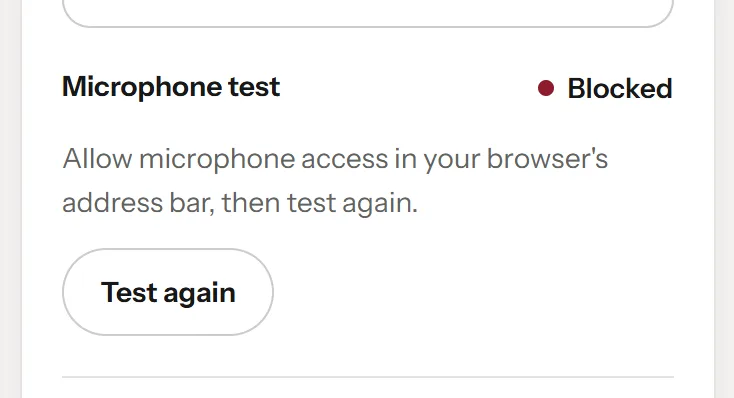
The microphone test when the browser has blocked the microphone.
- The status: Blocked or Not found
- What to do
- Test again once allowed
- Click the icon at the left of the address bar (a lock or sliders).
- Set Microphone to Allow for this site.
- Press Test again .
If the test says Not found, no microphone is connected or another app holds it. Connect a headset, close apps that use the microphone (video calls, recorders), then press Test again. On a Mac or Windows computer, also check that the operating system lets the browser use the microphone.
9.4 You cannot hear the patient
- Check your volume and the output device (headset or speakers).
- Check that the browser tab is not muted.
- Turn on Captions to read what the patient says while you fix the sound.
- If the video does not move at all, the connection may have dropped: end the conversation and start again from Cases.
9.5 The patient does not answer
- Open microphone: check that you are not muted. The label under the microphone button reads Microphone muted when you are.
- Push to talk: hold Hold to talk for the whole sentence and release it at the end. The patient answers after you release.
- Pause after you finish speaking. The patient waits for a short silence before answering.
- Background noise can keep the patient waiting. Move somewhere quieter, or switch to Push to talk for your next conversation.
9.6 Stuck on “Connecting”
Connecting normally takes a few seconds. If it lasts more than a minute, press End, then start again from Cases. You are charged the length the avatar service reports, which is little or nothing when the patient did not appear; until it reports, the summary shows the time as pending. If it happens twice, try another network or browser, and tell your course staff.
9.7 “Still closing”
Your last conversation has ended on your side, but the avatar service has not confirmed it yet. Until it does, its time is held and you cannot start another. It usually clears by itself once the avatar service answers. On Cases, press Try to end it now to ask again.
9.8 The time looks wrong
- The charge is lower than your clock. You are charged the length the avatar service reports, which can be shorter than the clock. See 3.2.1 How you are charged.
- Some time shows as Being confirmed. The avatar service has not reported the length yet. If it is “taking longer than usual”, it settles when the service reports it. Time being confirmed can only go down.
- The conversation was shorter than your conversation time. One conversation lasts at most the lowest of your conversation time, the cohort’s length and the avatar plan’s limit. See 3.2.2 Why a conversation can be shorter than your conversation time.
- You have fewer minutes than you expected. Ask your course staff; they can see your figures and add minutes.
9.9 The transcript is not ready
Right after a conversation the text can take a while to be ready. The summary asks again by itself for up to ten minutes. After that, press Try again, or come back later from Sessions. If the transcript says Not kept, nobody can download it: Keep this conversation was off. See 7.3 When a transcript is available.
9.10 The survey does not load
Some school networks or browser settings block the survey inside the page. Press Open in a new tab to answer it there, then come back and press I finished the survey. Or press Use the short form instead, which is Elvyn’s own anonymous form.