Part one: for students
3. Concepts
This chapter explains the few ideas every screen relies on. Read it once early on: it answers most questions before they come up.
3.1 Cohorts and cases
A cohort is a group of students practising together, usually one course section in one term. Your course staff put your email on the cohort’s list and gives each person on it a number of minutes. You can be on more than one cohort; each has its own minutes.
A case is one patient: a person with a name, an age, a reason for the visit and a story the patient keeps to. Each cohort offers one or more cases. The pilot has three, Isabelle, Leah and Maya, written by the course’s teaching team. On Cases, each patient has a card with a portrait, what to focus on, the length of your next conversation and a Prepare button.
A cohort is open while you can start conversations. When the course is over, staff close it: you can no longer start a conversation, but your past sessions stay listed and their transcripts can be downloaded until their keeping period ends.
3.2 Minutes
Each cohort gives you a number of minutes. The band at the top of Cases shows where you stand. The figure below was taken while a conversation was running:
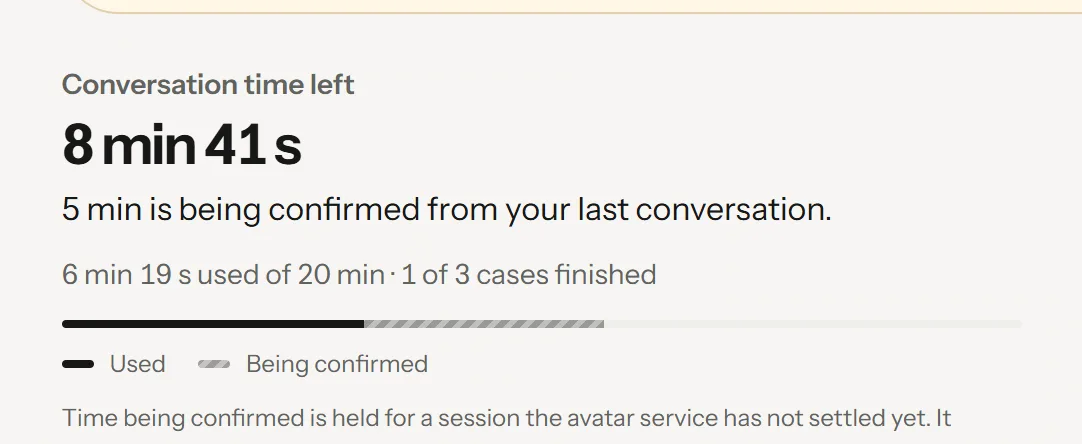
Conversation time left on Cases during a conversation: what is left, what it is enough for, what was used, and what is being confirmed.
- Conversation time left: what you can still use
- What that time is enough for
- Used, out of all your minutes
- Being confirmed: held for a conversation not settled yet
- Conversation time left : what you can still use. This is the large figure.
- The sentence under it says what that time is enough for. It is one of four, in this order: “You have used all your conversation time. Your course staff can add more.” when nothing is left; “5 min is being confirmed from your last conversation.” while time is held for a conversation; “Enough for one shorter conversation of 3 min.” when less than one full conversation is left; otherwise “Enough for about 2 conversations of up to 5 min. Time you do not use stays with you.”
- Used : the time already charged, out of all your conversation time, for example “5 min 12 s used of 20 min”.
- Being confirmed : on the bar under the figures, a lighter segment after Used is time held for a conversation that is not settled yet. While a conversation runs, its whole length is held. The segment and its label appear only when something is held.
Conversation time left is what remains once the used time and the time being confirmed are taken away: 20 min, less 5 min 12 s used, less 5 min being confirmed, leaves 9 min 48 s. Each cohort has its own band; the top bar’s chip, for example 9 min 48 s left, adds up the cohorts you can use.
3.2.1 How you are charged
The clock on screen starts when the patient connects, not when you press Start conversation. Reading the brief and testing your microphone use none of your conversation time.
When a conversation ends, Elvyn first holds an estimate: the time since you pressed Start conversation, plus a few seconds, and no more than the conversation’s length. When the avatar service reports how long the conversation lasted, Elvyn charges that figure instead. The charge can only go down from the estimate, not up. Until the figure arrives, Cases shows that time as Being confirmed.
You are charged the time the avatar service reports, and that time can be shorter than the time on your clock. In one test on 12 November 2026, a conversation that ran 72 seconds on the clock was reported, and charged, as 36 seconds. If the avatar service reports that the conversation ended because of a fault on its side, you are charged nothing.
3.2.2 Why a conversation can be shorter than your conversation time
One conversation lasts at most the lowest of three limits:
- Your conversation time left in that cohort.
- The cohort’s session length, set by your course staff (for example 10 minutes).
- The avatar plan’s limit, the longest conversation the avatar service allows on Elvyn’s current plan (for example 5 minutes).
The length shown on each case card already takes all three into account, so it is the real length of your next conversation. If you have 20 conversation time left and the plan allows 5, each conversation lasts 5 minutes and you can have four. Prepare says the same next to Start conversation: “This conversation can use up to 5 min of your 20 min.”
Good to know
You need at least one minute left to start a conversation. With no time left, Cases says You have used all your conversation time. Your course staff can add more. and the Prepare buttons are unavailable.
3.3 Conversations and transcripts
A transcript is the text of what you and the patient said, with a time for each line. This section says where it is stored, for how long, and who can read it.
3.3.1 Where the transcript is stored
The transcript is stored at the avatar service, LiveAvatar, not in Elvyn. LiveAvatar produces it while you talk. Elvyn does not write the text to its database or to its logs.
When you press Download transcript or Transcript, Elvyn asks LiveAvatar for the text at that moment and passes it to your browser as a plain text file. The file name names the case, the language and the date, for example elvyn-leah-student-health-en-2026-11-10.txt.
Elvyn itself keeps a record that the conversation happened: the case, the language, the times, the time charged, and the settings that applied to it.
3.3.2 How long it is kept
Each cohort sets a keeping period, 30 days unless your course staff changed it. The period is counted from the end of the conversation. When it is over, the transcript can no longer be downloaded from Elvyn, and Elvyn asks LiveAvatar to delete the conversation, repeating the request until LiveAvatar confirms. The summary of each conversation shows the last day it is available, for example “Available until December 12, 2026.”
Download the transcript during that period if you want to keep it. The file on your computer is yours; Elvyn cannot delete it.
3.3.3 Keep this conversation
Before each conversation, Prepare shows a switch, Keep this conversation. It is on by default.
- On: the conversation is kept for the cohort’s period so you can download the transcript. The line under the switch says how many days, and whether course staff can read it.
- Off: “Not kept: there will be no transcript.” Nobody can download this conversation, not you and not course staff, and patient memory is not used. Elvyn asks LiveAvatar to delete the conversation as soon as it ends, and repeats the request until LiveAvatar confirms.
If your cohort does not keep conversations at all, the switch is not shown and no conversation can be downloaded.
3.3.4 Can course staff read it?
Only if your cohort allows it, and only for conversations you kept. You know before you start: the line under Keep this conversation says either “Course staff can also read it” or “Course staff cannot read it”.
That setting is fixed for each conversation when you start it. If staff change the cohort’s setting later, it applies only to conversations that start after the change; it does not open up an earlier one. When staff are allowed to read a transcript, each time one of them downloads it is recorded in Elvyn’s audit log.
Without the transcript, staff see only that a conversation took place: who, which patient, which language, when, how long, and whether it was kept.
3.4 Patient memory
Patient memory lets a patient remember your earlier conversations with them. It is optional and off unless the platform administrator turns it on. While it is off, you see nothing about it.
3.4.1 When a conversation uses memory
A conversation uses memory only when all three conditions hold:
- The platform allows it. The administrator has turned patient memory on.
- You chose it. The switch Let patients remember your earlier conversations is on. If you never touched it, the platform’s default applies.
- The conversation is kept. Keep this conversation is on. While it is off, the memory switch is off and greyed out with the line “Memory needs the conversation to be kept.”
Your choice is one setting for all patients. You can change it on Prepare or in Account.
3.4.2 What is stored, and where
Memory is per patient. After a kept conversation with a patient has connected and finished, Elvyn asks LiveAvatar to write a summary of it, the memory. The summary page then says “A summary of this conversation is being prepared so Leah can remember it next time.”
LiveAvatar can refuse. It refuses conversations too short to summarise: on 12 November 2026 it answered “Unable to summarize session from transcripts” for a 44-second test. Then no memory is created, and a later kept conversation with that patient can try again.
When a memory exists, your next conversations with that patient use it, and the summary page says “Leah remembered your earlier conversations.” The memory is stored at LiveAvatar. Elvyn stores only a reference to it for you and that patient, with dates. Course staff cannot see memories.
3.4.3 How long, and how to delete it
A memory expires after a number of days counted from when it was created, or from the start of the latest conversation that used it. The number of days is the keeping period of that conversation’s cohort (30 unless staff changed it). Elvyn then asks LiveAvatar to delete it, and repeats the request on each background pass until LiveAvatar confirms.
Turning the switch off asks for every patient’s memory of you to be deleted. Elvyn asks first (Turn off patient memory?); press Turn off and delete to confirm. Elvyn marks the memories at once and asks LiveAvatar to delete them on its next background passes. Your next conversations start fresh.
3.5 The survey and the short form
After each finished conversation, the summary page asks for your opinion of it. Every question is optional.
- The full survey is a SurveyMonkey form, shown inside the page when your cohort has one in the language of your conversation. Your answers go to SurveyMonkey, not to Elvyn. Elvyn sends SurveyMonkey no name and no email; whether SurveyMonkey records anything else, such as your IP address, depends on how the survey’s collector is set. The pilot’s collectors are set to anonymous responses.
- The short form is Elvyn’s own: 11 questions, about one minute. You get it when the cohort has no survey in that language, or when you choose Use the short form instead. Elvyn keeps your answers with only the week, the case and the language: no name, no email, no link to your session.
Elvyn’s short form takes one set of answers per finished conversation. The SurveyMonkey survey follows its collector’s settings, which decide whether it can be answered more than once.
3.5.1 The code on the survey link
When the platform has survey codes set up, the link to the full survey carries a code of 16 letters and digits. Each conversation that connected and finished has its own. The code lets researchers keep only answers that come from a real conversation, and each only once.
The code holds nothing about you. It is computed from the conversation’s internal number with a secret key, so it cannot be guessed or worked back. Course staff can download the list of valid codes, but the list does not say whose code is whose. Only someone holding both Elvyn’s database and its secret key could match a code to a conversation.
Good to know
SurveyMonkey saves the code with an answer only on a paid plan with custom variables. The pilot’s free plan does not save it.
3.6 What Elvyn knows about you
The personal information Elvyn holds is your email address and, if your course staff added it, your name. Your email is how you sign in, and a sign-in service holds it for that.
Elvyn also keeps what it needs to run your practice:
- Your conversation time in each cohort, and whether your access is active or suspended.
- One record per conversation: the patient, the language, when it started and ended, the time charged, whether it was kept, and whether staff may read it.
- Your patient memory choice, and a reference to each memory if you use it.
- A log of what staff changed about you, such as your conversation time, with a reason code and no free text.
Elvyn does not store the conversation’s text, does not record your voice, and does not turn on your camera. The text stays at LiveAvatar as described in 3.3.1 Where the transcript is stored. The full list of what is stored where is in 18. Data and privacy reference.