Part one: for students
5. The conversation
The conversation opens full screen, with the patient filling the frame and three controls at the bottom. This chapter describes each part and what happens when something goes wrong.
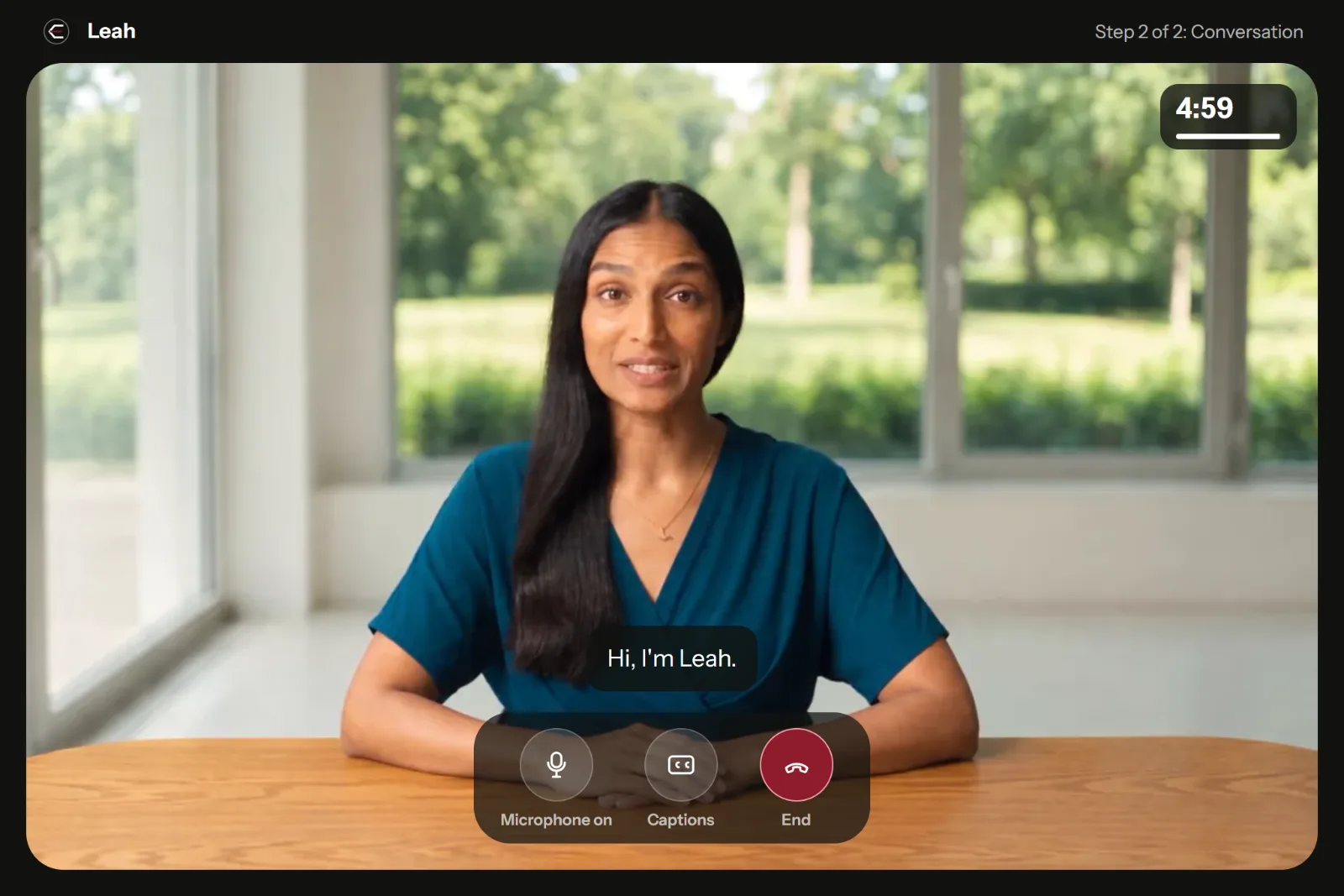
The conversation screen and its controls.
- The patient
- Step 2 of 2: the conversation
- The clock: time left
- Microphone: mute, or hold to talk
- Captions on or off
- End the conversation
The patient fills the screen. “Step 2 of 2: Conversation” sits at the top right, the clock below it. At the bottom are the microphone , Captions and End .
5.1 Connecting
After you press Start conversation, the screen says “Connecting to Leah…” in the top-left corner. Connecting usually takes a few seconds. Your browser may ask once more for the microphone: allow it.
When the patient is connected the status disappears, the patient appears and says their first line. Your time starts now.
5.2 The clock
The clock shows the time left, with a thin line under it that shortens as time passes. Until the patient connects it shows the full length and does not move.
The screen warns you twice: “One minute left.” and “30 seconds left.” When the clock reaches zero you see “Time is up.”, Elvyn ends the conversation and opens its summary.
The clock follows the time on Elvyn’s server, so it stays right even if your computer’s clock is wrong.
5.3 Captions
Captions show what the patient says, above the controls. They are on when the conversation starts. Press Captions to hide or show them.
5.4 The microphone
The microphone control depends on the mode you chose on Prepare:
- Open microphone: the button mutes and unmutes you. Its label reads Microphone on or Microphone muted. While you are muted, the patient hears nothing.
- Push to talk: press and hold Hold to talk while you speak, and release it when you finish. While you hold it, the label reads “Listening…”. With a keyboard, focus the button and hold Space or Enter.
Good to know
Let the patient finish before you speak. If you talk over the patient, the patient may stop, or answer only part of your question.
5.5 Ending the conversation
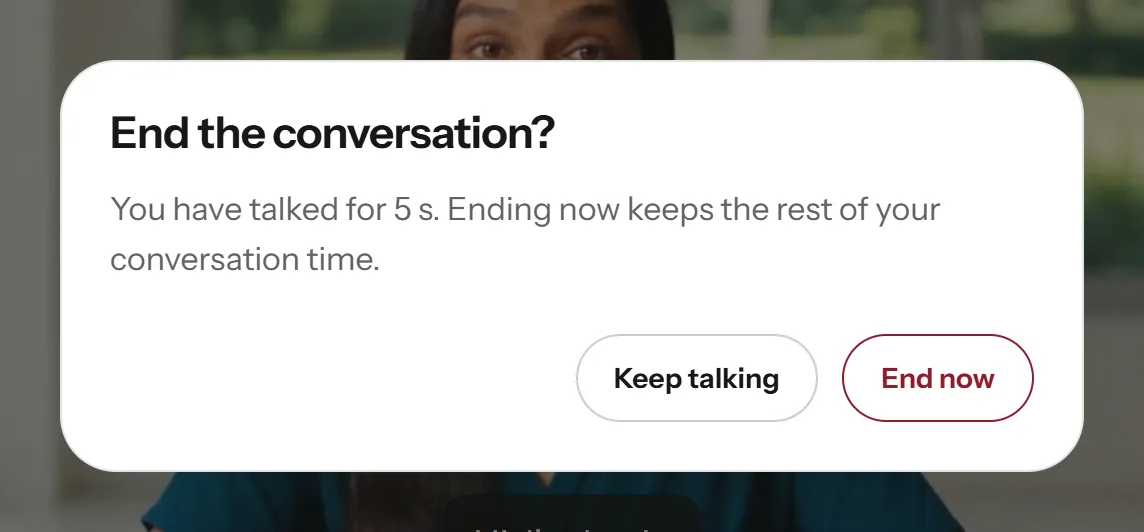
The end dialog.
- How long you have talked
- Keep talking: back to the patient
- End now: opens the summary
Press End (the red control) when you have finished. Elvyn asks End the conversation? and tells you how long you have talked . Press End now to end, or Keep talking to go back.
Ending early keeps the rest of your conversation time. The summary opens: see 6. After the conversation.
5.6 When something interrupts you
A conversation cannot be paused or resumed. Anything that takes you away from the conversation screen ends it.
| What happens | Result |
|---|---|
| You reload the page | The conversation ends. The summary says “Reloading the page ended this conversation after 1 min 12 s, because a conversation cannot continue after a reload.” |
| You close the tab or the browser | Most browsers ask you to confirm first; some do not. Leaving sends Elvyn a request to end the conversation. If that request does not arrive, Elvyn’s server ends the conversation within minutes, and the time until then can be charged. |
| The connection to the patient drops | You see “The connection to Leah was lost.” Press End and see your summary. |
| Elvyn loses contact with its server | After three failed checks in a row (about 45 seconds), you see “Elvyn lost contact with the server, so the conversation was ended.” |
| Your time runs out | The conversation ends at zero and the summary opens. |
| Course staff end it | The conversation ends. The summary says “Course staff ended this conversation after 2 min 5 s.” |
You are charged the time the avatar service reports for the conversation (see 3.2.1 How you are charged). After an interruption you can start a new conversation from Cases as long as you have conversation time left. If Cases says Still closing, the avatar service has not confirmed the end yet: wait a little, or press Try to end it now.