Elvyn lets you practise a short spoken interview with a simulated patient, in English or French. The patient is a video avatar that listens and answers out loud. You prepare, talk with the patient until you end the conversation or your time runs out, then download what was said and answer a short survey.
1Conversation time left, and what it is enough for
2The same time, on every Practice page
3A case card: the patient, the focus, the length and the status
4Prepare opens the brief
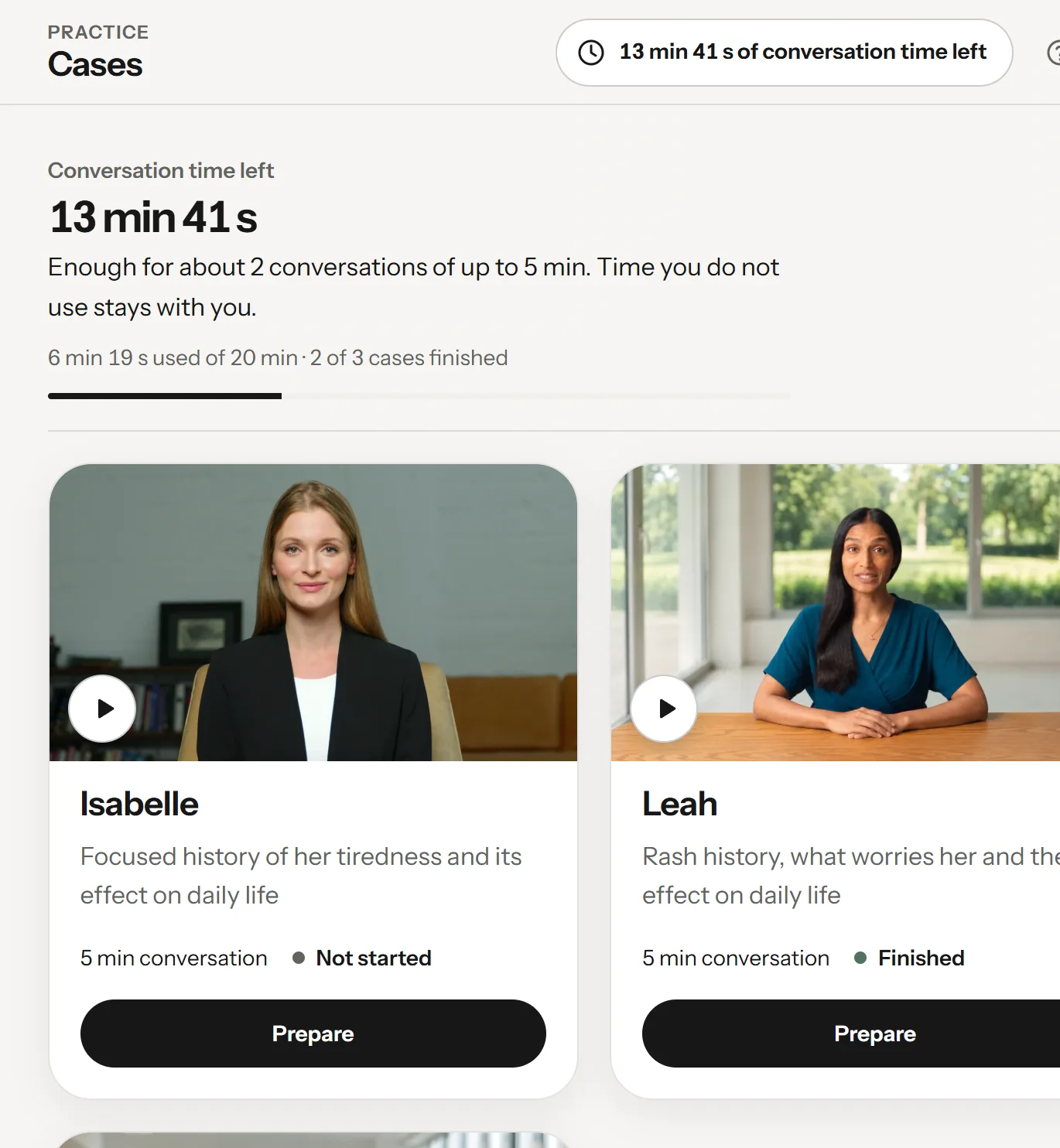
Every conversation starts on Cases. The band at the top shows your Conversation time left in this cohort, with one sentence that says what it is enough for. The top bar shows the same time on every Practice page. Until your first conversation, three numbered steps sit above the cards, with Watch the walkthrough, a short guide video; Fold to one line or Hide these steps puts them away. Each patient has a card with a portrait, what to focus on, the length of your next conversation and whether you have finished it. Prepare opens the brief for that patient.
1.1 What Elvyn is
Elvyn is a practice tool for nursing communication. Your course staff chose the patients and gave you a number of minutes to use. Each patient has a short handout that tells you your role, the setting and what to find out.
The patients were written by your course’s teaching team. The avatar service, LiveAvatar, turns that description into a face and a voice. The patient answers in the language you choose for the conversation.
Elvyn is made by RMGN. It is a pilot: about 250 students, a few minutes each, three patients.
1.2 What Elvyn is not
It is not a clinical system. Nothing you say goes into a health record, and nothing the patient says is medical advice.
It is not an exam. Elvyn does not grade you. Your course staff see that you had a session and how long it lasted. They can read what was said only if your cohort allows it, and Elvyn tells you before you start (see 3.3 Conversations and transcripts).
It can be wrong. The patient is generated by AI. It can say something inaccurate, forget a detail or answer in an unexpected way. Treat it as practice, not as a model answer.
Use fictional details. Do not share real patient information or other sensitive personal information during a conversation.
1.3 What you need
A recent browser. Use Chrome or Edge on a computer if you can: that is what Elvyn is tested with. Recent Firefox and Safari should work too. Keep the tab open for the whole conversation.
A microphone. A headset is best, because it keeps the patient’s voice out of your microphone. The built-in microphone of a laptop works in a quiet room.
A quiet place. The patient hears everything your microphone picks up, including other voices.
A stable connection. The patient is streamed as video. Wi-Fi at home or on campus is usually enough; a weak mobile signal can drop the conversation.
Your email address on the course list. You sign in with the address your course staff added. See 2.1 Signing in.
Good to know
The clock starts when the patient connects, not when you press Start. Reading the handout and testing your microphone use none of your conversation time.
1.4 Who can read each part
Anyone can read part one, the student quick start, 18. Data and privacy reference and 19. Glossary, signed in or not. Part two and the staff quick start are for people who manage a cohort and for platform administrators. Chapters 15 to 17 are for platform administrators only.
A chapter you cannot read stays in the list with a lock. Signed out, its page says This part is for course staff (or This part is for platform administrators) with Sign in to view, which brings you back to the chapter after you sign in; Sign in to view staff chapters sits at the foot of the chapter list. Signed in without access, the page says so and suggests asking your course staff. Search and Download PDF cover only the chapters you can read.
Part one: for students
2. First steps
This chapter takes you from the sign-in page to the Cases page, and shows where everything is.
2.1 Signing in
Elvyn has no passwords. You sign in with a six-digit code sent to your email.
Open the address your course staff gave you. The page says Sign in and “Use the email on your course list. We will send a six-digit code.” Enter your email in Email address: the address your course staff added to the list, usually your school address.
Press Send sign-in code. The page changes to Check your email.
Find the email with the code. Enter the six digits in Verification code and press Sign in.
On a computer, a preview beside the form plays four short scenes of Elvyn: choose a patient, read the brief, talk, and download what was said. Pause preview stops it. On a phone it sits above the form. How Elvyn works, under the form, opens this manual. Not on the list? Contact your course staff. is there for anyone who cannot sign in.
If the code does not arrive after a minute or two, check your junk folder, then press Send a new code (it shows a countdown until you can ask again). If you typed the wrong address, press Use a different email.
After you sign in, Elvyn opens Cases. That browser stays signed in for a while; when Elvyn asks you to sign in again, repeat these steps. On a shared computer, sign out when you finish (see 8.6 Signing out).
Good to know
A code works once. If you get “That code could not be verified”, check the six digits, or ask for a new code if it has expired.
2.2 When you are not on a list
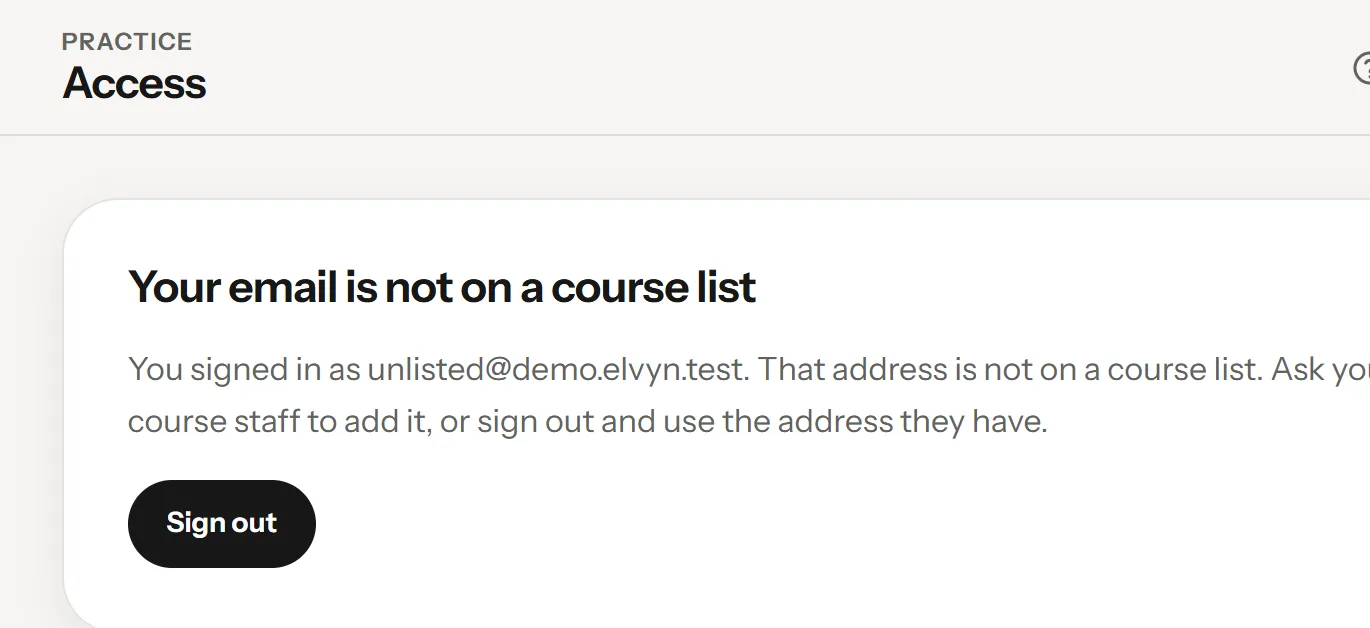
Nobody can use Elvyn unless their email is on a course list. If you sign in with an address that is not on one, you see Your email is not on a course list , with the address you used.
What you see when the address you signed in with is not on any list.
1The message, with the address you used
2Sign out and use another address
This almost always means one of two things:
You used another address. For example a personal address instead of your school one. Press Sign out and sign in with the address your course staff have.
The list has a typo, or you were not added yet. Write to your course staff with the address you want to use. Once they add it, sign in again.
Two other messages can appear after sign-in. Each needs one action:
You see
What to do
This email is linked to another sign-in
Ask your course staff to reset your sign-in, then sign in again.
Your email address is not verified
Sign out, then sign in again with the six-digit code.
2.3 Choosing a language
Elvyn’s screens are in English and Canadian French. Two choices are separate:
The language of the screens. Use the language switch at the bottom of the sidebar (on a phone, in the bar at the top of the page). It names the other language: Français or English. The page you are on reloads in that language. The address shows it too: /en/ or /fr/.
The language of the conversation. You choose it on the Prepare page for each conversation, under Conversation language (see 4.3 Language and microphone). You can read the screens in English and talk with the patient in French, or the other way round.
2.4 Finding your way around
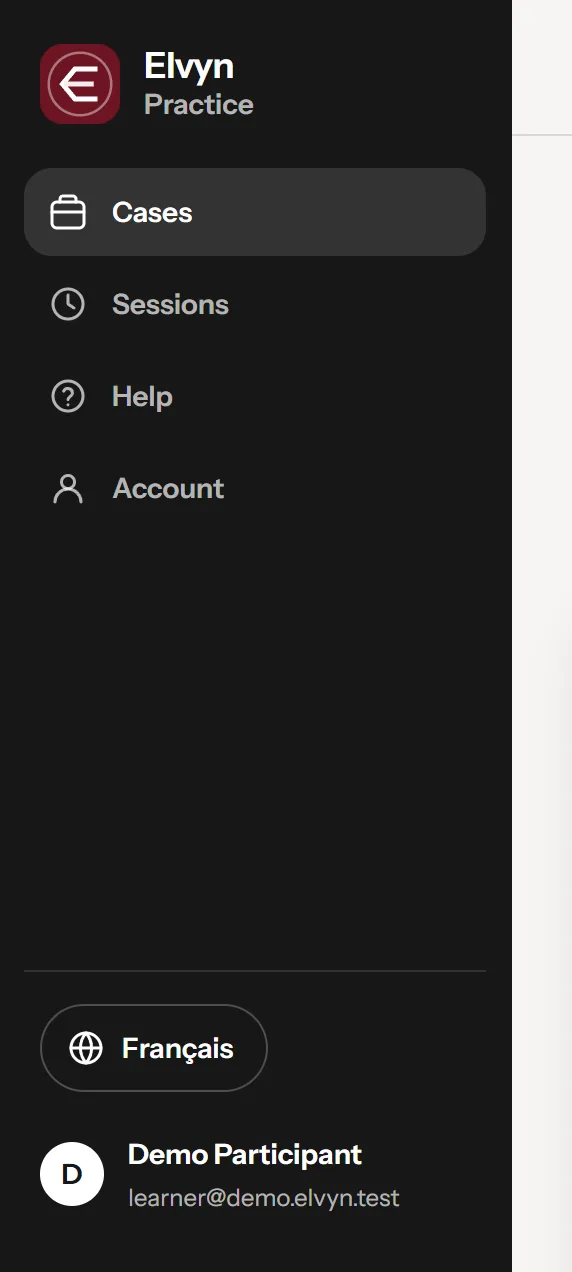
On a computer, a sidebar on the left holds everything. Its top says Elvyn and Practice, the area where you practise with patients. On a phone, the same destinations sit in a bar at the bottom of the screen.
The sidebar.
1Cases: your minutes and patients
2Sessions: every conversation you had
3Help: this manual and the guide videos
4The language of the screens
5Account: your settings and Sign out
Cases is the start page: your conversation time and the patients you can talk with.
Sessions lists every conversation you have had, with its transcript and its summary (see 7. Sessions).
Help opens this manual and the guide videos. The manual opens in its own page; Back to Elvyn at the top returns to Cases.
The language switch changes the language of the screens.
Account holds your email, language, patient memory, guide video setting, and Sign out (see 8. Account). Your name at the foot of the sidebar opens it too.
On every Practice page, the top bar shows your time left, for example 10 min left. Press it to go back to Cases. If you are on more than one cohort’s list, it adds up their time and says so, for example “in 2 cohorts”.
If you also manage a cohort, Elvyn gives you a second area, Course staff, and a switcher under Elvyn at the top of the sidebar: Practice and Course, plus Platform for platform administrators. On a phone, press the tile at the top left to switch. See 10. The Course staff area.
The conversation itself opens full screen, without the sidebar. You return to the sidebar when it ends.
Part one: for students
3. Concepts
This chapter explains the few ideas every screen relies on. Read it once early on: it answers most questions before they come up.
3.1 Cohorts and cases
A cohort is a group of students practising together, usually one course section in one term. Your course staff put your email on the cohort’s list and gives each person on it a number of minutes. You can be on more than one cohort; each has its own minutes.
A case is one patient: a person with a name, an age, a reason for the visit and a story the patient keeps to. Each cohort offers one or more cases. The pilot has three, Isabelle, Leah and Maya, written by the course’s teaching team. On Cases, each patient has a card with a portrait, what to focus on, the length of your next conversation and a Prepare button.
A cohort is open while you can start conversations. When the course is over, staff close it: you can no longer start a conversation, but your past sessions stay listed and their transcripts can be downloaded until their keeping period ends.
3.2 Minutes
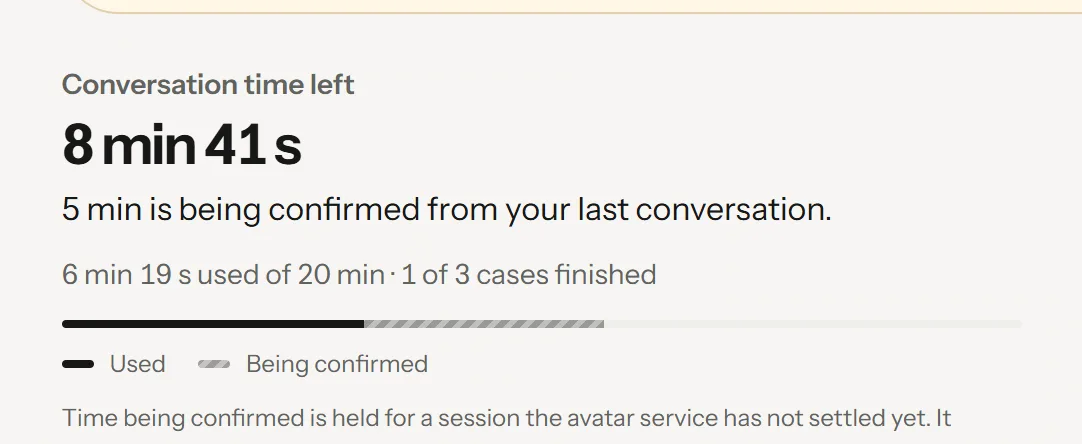
Each cohort gives you a number of minutes. The band at the top of Cases shows where you stand. The figure below was taken while a conversation was running:
Conversation time left on Cases during a conversation: what is left, what it is enough for, what was used, and what is being confirmed.
1Conversation time left: what you can still use
2What that time is enough for
3Used, out of all your minutes
4Being confirmed: held for a conversation not settled yet
Conversation time left : what you can still use. This is the large figure.
The sentence under it says what that time is enough for. It is one of four, in this order: “You have used all your conversation time. Your course staff can add more.” when nothing is left; “5 min is being confirmed from your last conversation.” while time is held for a conversation; “Enough for one shorter conversation of 3 min.” when less than one full conversation is left; otherwise “Enough for about 2 conversations of up to 5 min. Time you do not use stays with you.”
Used : the time already charged, out of all your conversation time, for example “5 min 12 s used of 20 min”.
Being confirmed : on the bar under the figures, a lighter segment after Used is time held for a conversation that is not settled yet. While a conversation runs, its whole length is held. The segment and its label appear only when something is held.
Conversation time left is what remains once the used time and the time being confirmed are taken away: 20 min, less 5 min 12 s used, less 5 min being confirmed, leaves 9 min 48 s. Each cohort has its own band; the top bar’s chip, for example 9 min 48 s left, adds up the cohorts you can use.
3.2.1 How you are charged
The clock on screen starts when the patient connects, not when you press Start conversation. Reading the brief and testing your microphone use none of your conversation time.
When a conversation ends, Elvyn first holds an estimate: the time since you pressed Start conversation, plus a few seconds, and no more than the conversation’s length. When the avatar service reports how long the conversation lasted, Elvyn charges that figure instead. The charge can only go down from the estimate, not up. Until the figure arrives, Cases shows that time as Being confirmed.
You are charged the time the avatar service reports, and that time can be shorter than the time on your clock. In one test on 12 November 2026, a conversation that ran 72 seconds on the clock was reported, and charged, as 36 seconds. If the avatar service reports that the conversation ended because of a fault on its side, you are charged nothing.
3.2.2 Why a conversation can be shorter than your conversation time
One conversation lasts at most the lowest of three limits:
Your conversation time left in that cohort.
The cohort’s session length, set by your course staff (for example 10 minutes).
The avatar plan’s limit, the longest conversation the avatar service allows on Elvyn’s current plan (for example 5 minutes).
The length shown on each case card already takes all three into account, so it is the real length of your next conversation. If you have 20 conversation time left and the plan allows 5, each conversation lasts 5 minutes and you can have four. Prepare says the same next to Start conversation: “This conversation can use up to 5 min of your 20 min.”
Good to know
You need at least one minute left to start a conversation. With no time left, Cases says You have used all your conversation time. Your course staff can add more. and the Prepare buttons are unavailable.
3.3 Conversations and transcripts
A transcript is the text of what you and the patient said, with a time for each line. This section says where it is stored, for how long, and who can read it.
3.3.1 Where the transcript is stored
The transcript is stored at the avatar service, LiveAvatar, not in Elvyn. LiveAvatar produces it while you talk. Elvyn does not write the text to its database or to its logs.
When you press Download transcript or Transcript, Elvyn asks LiveAvatar for the text at that moment and passes it to your browser as a plain text file. The file name names the case, the language and the date, for example elvyn-leah-student-health-en-2026-11-10.txt.
Elvyn itself keeps a record that the conversation happened: the case, the language, the times, the time charged, and the settings that applied to it.
3.3.2 How long it is kept
Each cohort sets a keeping period, 30 days unless your course staff changed it. The period is counted from the end of the conversation. When it is over, the transcript can no longer be downloaded from Elvyn, and Elvyn asks LiveAvatar to delete the conversation, repeating the request until LiveAvatar confirms. The summary of each conversation shows the last day it is available, for example “Available until December 12, 2026.”
Download the transcript during that period if you want to keep it. The file on your computer is yours; Elvyn cannot delete it.
3.3.3 Keep this conversation
Before each conversation, Prepare shows a switch, Keep this conversation. It is on by default.
On: the conversation is kept for the cohort’s period so you can download the transcript. The line under the switch says how many days, and whether course staff can read it.
Off: “Not kept: there will be no transcript.” Nobody can download this conversation, not you and not course staff, and patient memory is not used. Elvyn asks LiveAvatar to delete the conversation as soon as it ends, and repeats the request until LiveAvatar confirms.
If your cohort does not keep conversations at all, the switch is not shown and no conversation can be downloaded.
3.3.4 Can course staff read it?
Only if your cohort allows it, and only for conversations you kept. You know before you start: the line under Keep this conversation says either “Course staff can also read it” or “Course staff cannot read it”.
That setting is fixed for each conversation when you start it. If staff change the cohort’s setting later, it applies only to conversations that start after the change; it does not open up an earlier one. When staff are allowed to read a transcript, each time one of them downloads it is recorded in Elvyn’s audit log.
Without the transcript, staff see only that a conversation took place: who, which patient, which language, when, how long, and whether it was kept.
3.4 Patient memory
Patient memory lets a patient remember your earlier conversations with them. It is optional and off unless the platform administrator turns it on. While it is off, you see nothing about it.
3.4.1 When a conversation uses memory
A conversation uses memory only when all three conditions hold:
The platform allows it. The administrator has turned patient memory on.
You chose it. The switch Let patients remember your earlier conversations is on. If you never touched it, the platform’s default applies.
The conversation is kept.Keep this conversation is on. While it is off, the memory switch is off and greyed out with the line “Memory needs the conversation to be kept.”
Your choice is one setting for all patients. You can change it on Prepare or in Account.
3.4.2 What is stored, and where
Memory is per patient. After a kept conversation with a patient has connected and finished, Elvyn asks LiveAvatar to write a summary of it, the memory. The summary page then says “A summary of this conversation is being prepared so Leah can remember it next time.”
LiveAvatar can refuse. It refuses conversations too short to summarise: on 12 November 2026 it answered “Unable to summarize session from transcripts” for a 44-second test. Then no memory is created, and a later kept conversation with that patient can try again.
When a memory exists, your next conversations with that patient use it, and the summary page says “Leah remembered your earlier conversations.” The memory is stored at LiveAvatar. Elvyn stores only a reference to it for you and that patient, with dates. Course staff cannot see memories.
3.4.3 How long, and how to delete it
A memory expires after a number of days counted from when it was created, or from the start of the latest conversation that used it. The number of days is the keeping period of that conversation’s cohort (30 unless staff changed it). Elvyn then asks LiveAvatar to delete it, and repeats the request on each background pass until LiveAvatar confirms.
Turning the switch off asks for every patient’s memory of you to be deleted. Elvyn asks first (Turn off patient memory?); press Turn off and delete to confirm. Elvyn marks the memories at once and asks LiveAvatar to delete them on its next background passes. Your next conversations start fresh.
3.5 The survey and the short form
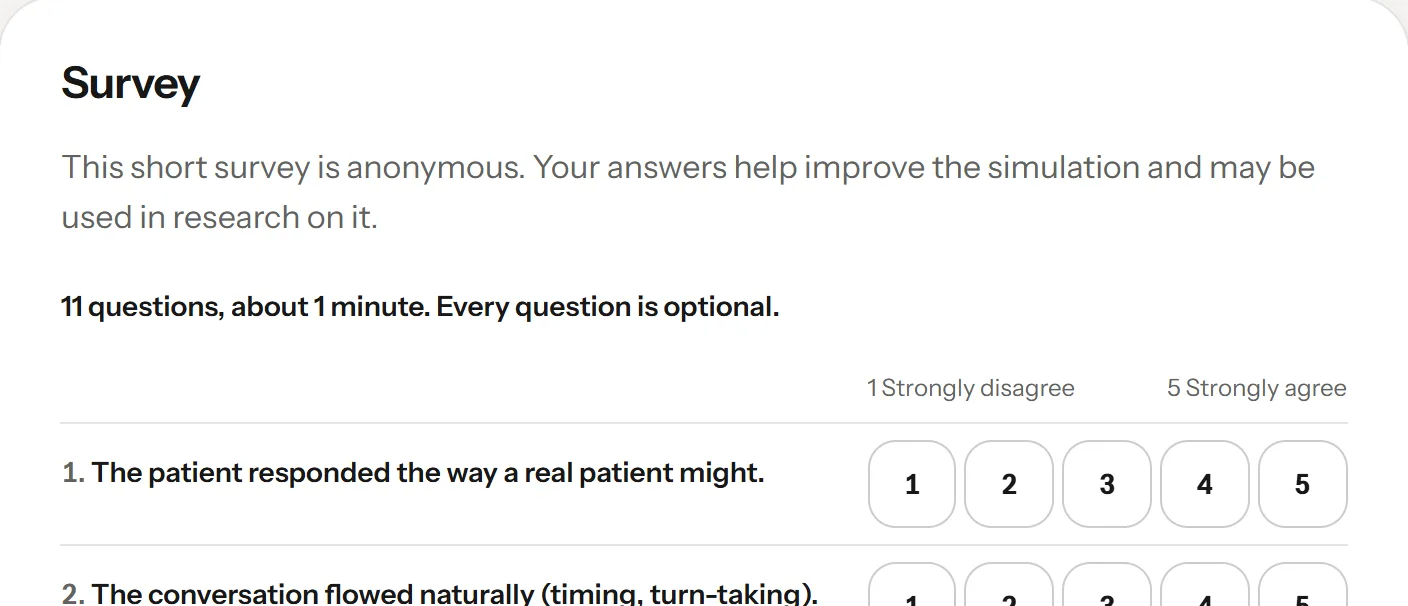
After each finished conversation, the summary page asks for your opinion of it. Every question is optional.
The full survey is a SurveyMonkey form, shown inside the page when your cohort has one in the language of your conversation. Your answers go to SurveyMonkey, not to Elvyn. Elvyn sends SurveyMonkey no name and no email; whether SurveyMonkey records anything else, such as your IP address, depends on how the survey’s collector is set. The pilot’s collectors are set to anonymous responses.
The short form is Elvyn’s own: 11 questions, about one minute. You get it when the cohort has no survey in that language, or when you choose Use the short form instead. Elvyn keeps your answers with only the week, the case and the language: no name, no email, no link to your session.
Elvyn’s short form takes one set of answers per finished conversation. The SurveyMonkey survey follows its collector’s settings, which decide whether it can be answered more than once.
3.5.1 The code on the survey link
When the platform has survey codes set up, the link to the full survey carries a code of 16 letters and digits. Each conversation that connected and finished has its own. The code lets researchers keep only answers that come from a real conversation, and each only once.
The code holds nothing about you. It is computed from the conversation’s internal number with a secret key, so it cannot be guessed or worked back. Course staff can download the list of valid codes, but the list does not say whose code is whose. Only someone holding both Elvyn’s database and its secret key could match a code to a conversation.
Good to know
SurveyMonkey saves the code with an answer only on a paid plan with custom variables. The pilot’s free plan does not save it.
3.6 What Elvyn knows about you
The personal information Elvyn holds is your email address and, if your course staff added it, your name. Your email is how you sign in, and a sign-in service holds it for that.
Elvyn also keeps what it needs to run your practice:
Your conversation time in each cohort, and whether your access is active or suspended.
One record per conversation: the patient, the language, when it started and ended, the time charged, whether it was kept, and whether staff may read it.
Your patient memory choice, and a reference to each memory if you use it.
A log of what staff changed about you, such as your conversation time, with a reason code and no free text.
Elvyn does not store the conversation’s text, does not record your voice, and does not turn on your camera. The text stays at LiveAvatar as described in 3.3.1 Where the transcript is stored. The full list of what is stored where is in 18. Data and privacy reference.
Part one: for students
4. Preparing for a conversation
Every conversation starts on the Prepare page. Nothing you do here uses minutes: take the time to read the brief and check your microphone.
Tour
Your first conversation
From Cases to the room: choose a patient, prepare, start and end.
app.elvyn.rmgn.ca/en
Step 1 of 9: Cases opens on your conversation time left and what it is enough for; choose a patient below to begin.
Step 1 of 9
Cases opens on your conversation time left and what it is enough for; choose a patient below to begin.
Choose Prepare on a patient’s card to open their brief.
Read the brief to the end, then set up the conversation on the right.
Choose English or French; the patient speaks the language you pick.
Press Test microphone and speak; the status changes to Working when Elvyn hears you.
Tick the three statements, including the one about not sharing real patient information, to unlock Start.
Check how much of your time this conversation can use, then press Start conversation; the clock starts when the patient connects.
Talk with the patient while the clock counts down the time left in this conversation.
Press End conversation when you are done; Elvyn asks you to confirm, then opens your summary.
4.1 Opening a case
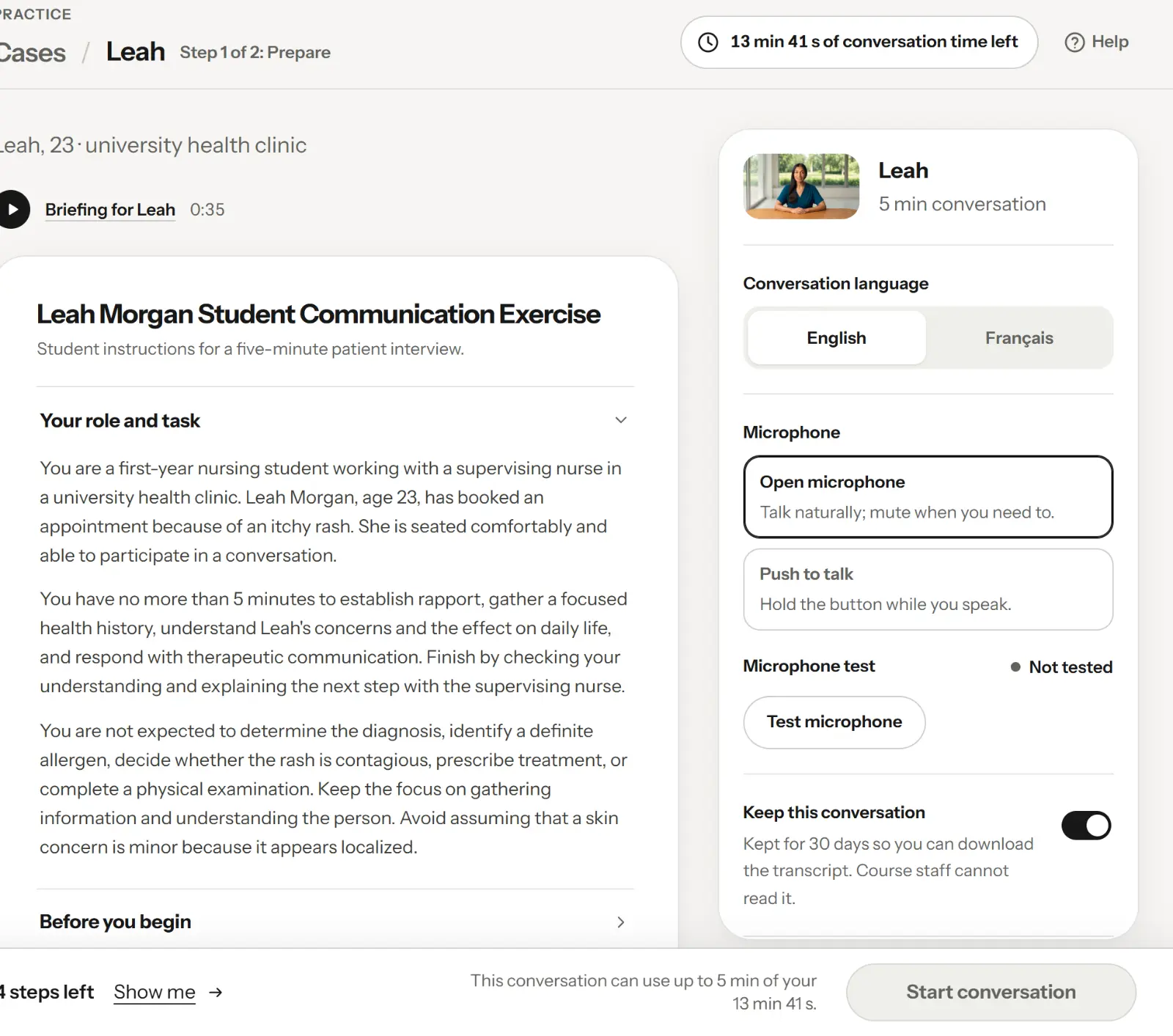
On Cases, press Prepare on a patient’s card. The Prepare page opens with “Step 1 of 2: Prepare” at the top : the conversation is step 2.
The Prepare page: the brief on the left, your settings on the right, the Start bar at the bottom.
1Where you are: step 1 of 2
2The brief: read it all
3Your settings for this conversation
4The Start bar
On a wide screen the page has two columns: the brief on the left and the panel with your settings on the right. On a narrower window or a phone, the panel comes before the brief. The Start bar stays at the bottom of the window.
4.2 The brief
The brief is the handout your course staff wrote for this patient. It tells you your role, the setting, what you should find out and how long you have. Read all of it before you start: the patient answers as the person it describes, and expects you to behave as the role it gives you.
If your conversation is in the other language than the brief was written in, a note says “Elvyn translated this handout from the original written by course staff.”
Some patients have a briefing clip, a short video about this conversation, above the brief. It opens in a player over the page; press Escape or the close button to return.
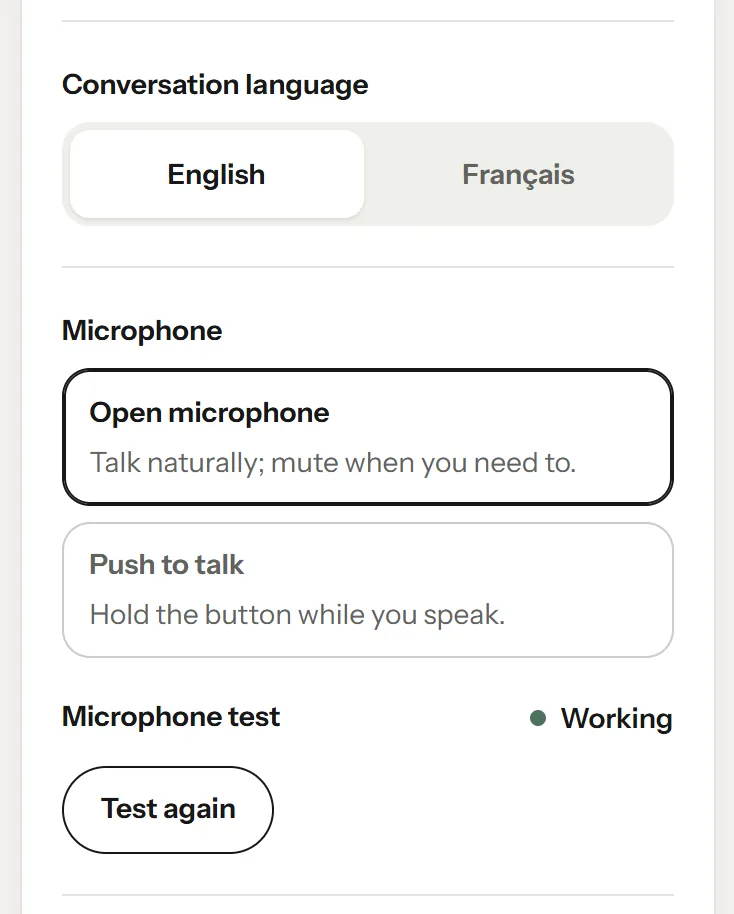
Conversation language, microphone mode and the microphone test.
1Conversation language
2Open microphone or push to talk
3The microphone test and its status
4Test again
Conversation language sets the language the patient speaks and expects: English or Français. It starts on the language of your screens. You can choose either, whatever the language of the brief.
Microphone sets how the patient hears you:
Open microphone: talk naturally. The patient listens all the time and answers when you pause. You can mute during the conversation.
Push to talk: the patient hears you only while you hold the talk button. Use it in a noisy place, or if the patient keeps answering before you finish.
4.4 The microphone test
Press Test microphone and say a few words. Your browser asks for permission to use the microphone the first time: allow it. The level bar moves while you speak, and the status changes:
Status
Meaning
Not tested
You have not run the test yet.
Listening
The test is running. Say a few words.
Working
Elvyn heard you. This step is done.
Blocked
The browser refused the microphone. Allow it in the address bar, then press Test again.
Not found
No microphone is connected. Connect one or a headset, then press Test again.
Test again runs the test once more. The test runs in your browser only. Nothing is sent or recorded.
4.5 Keeping the conversation, and memory
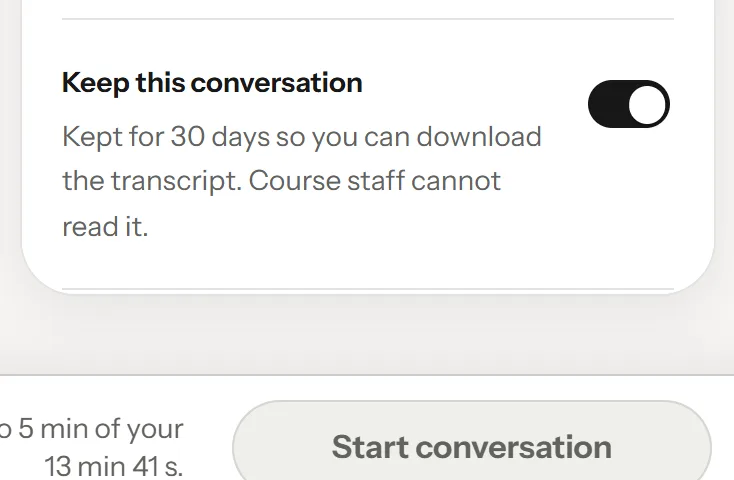
Keep this conversation, and the patient memory switch when the platform offers it.
1Keep this conversation
2How long it is kept, and whether staff can read it
3Patient memory (only when the platform offers it)
Keep this conversation decides whether there will be a transcript. The line under it says how many days the conversation is kept and whether course staff can read it. Turn it off and the line reads “Not kept: there will be no transcript.” The details are in 3.3.3 Keep this conversation.
When the platform allows patient memory, a second switch appears : Let patients remember your earlier conversations. It is your saved choice for every patient, not only this one. It works only while Keep this conversation is on. See 3.4 Patient memory.
4.6 The three statements
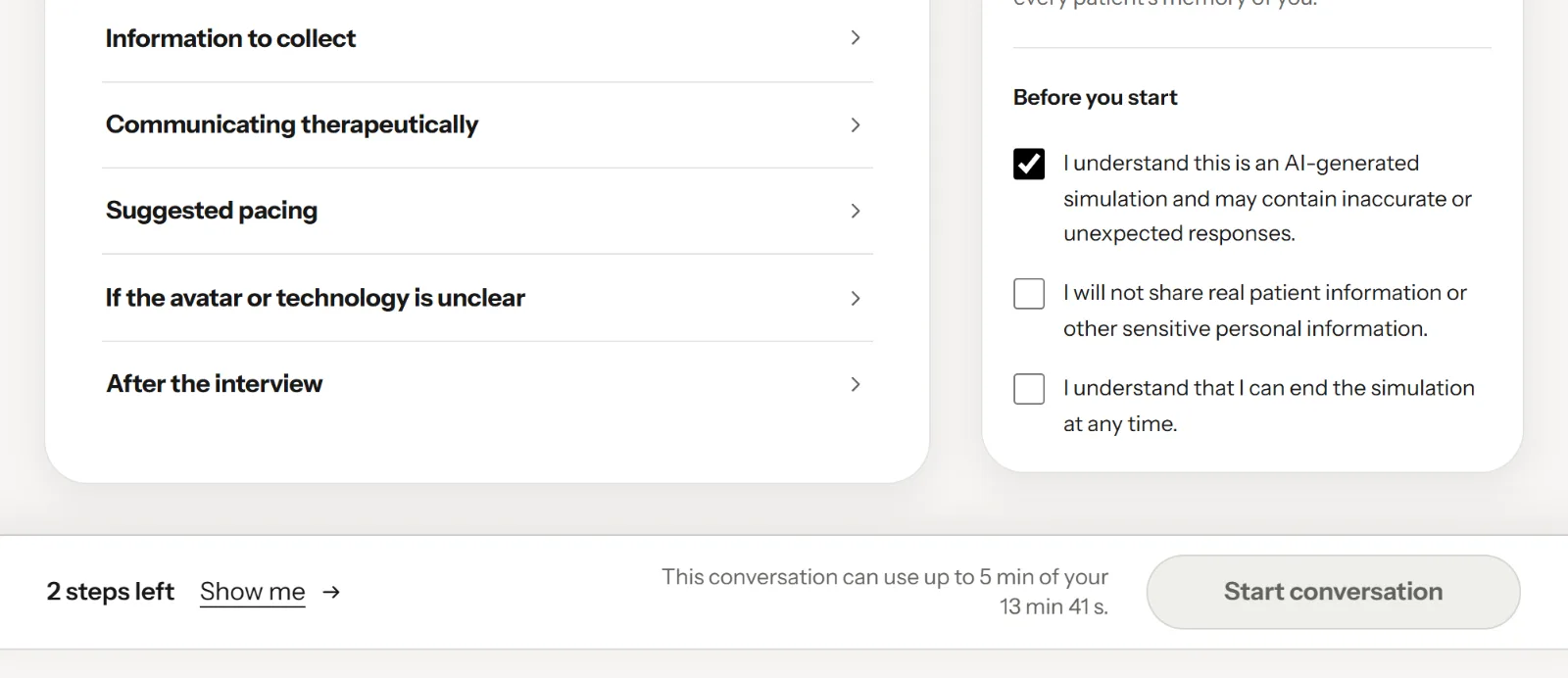
Under Before you start, tick the three statements:
I understand this is an AI-generated simulation and may contain inaccurate or unexpected responses.
I will not share real patient information or other sensitive personal information.
I understand that I can end the simulation at any time.
You confirm them before each conversation.
4.7 The Start bar
The Start bar with steps left and Show me.
1The three statements
2Steps left
3Show me: goes to the next missing step
4Start conversation, available when ready
The Start bar stays at the bottom of the page. It counts what is left to do: the microphone test and each of the three statements count as one step, so it starts at “4 steps left”. In the figure the test is done and one statement is ticked, so it says “2 steps left” .
Show me scrolls to the next step still missing and puts the focus on it.
When everything is done the bar says “Ready. The clock starts when Leah connects.” and Start conversation becomes available.
Next to the button, one line says how much of your time this conversation can take, for example “This conversation can use up to 5 min of your 10 min.” It is the length on the case card, out of your conversation time left (see 3.2.2 Why a conversation can be shorter than your conversation time).
Press Start conversation. The button shows “Starting…” while Elvyn reserves your time and asks the avatar service for a connection, then the conversation opens.
4.7.1 When Start does not work
Message
What to do
“Elvyn is busy. Trying again in 5 s.”
Wait. Many people are starting at once; Elvyn tries again by itself.
“You already have a session open. End it from Cases.”
You can have one conversation at a time. Go to Cases and end the open one.
“You have no conversation time left in this cohort.”
Ask your course staff for more minutes.
“Sessions cannot start right now. Try again in a few minutes.”
The platform is in maintenance, the cohort is not open, or the avatar service is unavailable. Try later.
“You cannot start this case. Contact your course staff.”
Your access to the cohort is suspended, or the case is no longer offered.
Part one: for students
5. The conversation
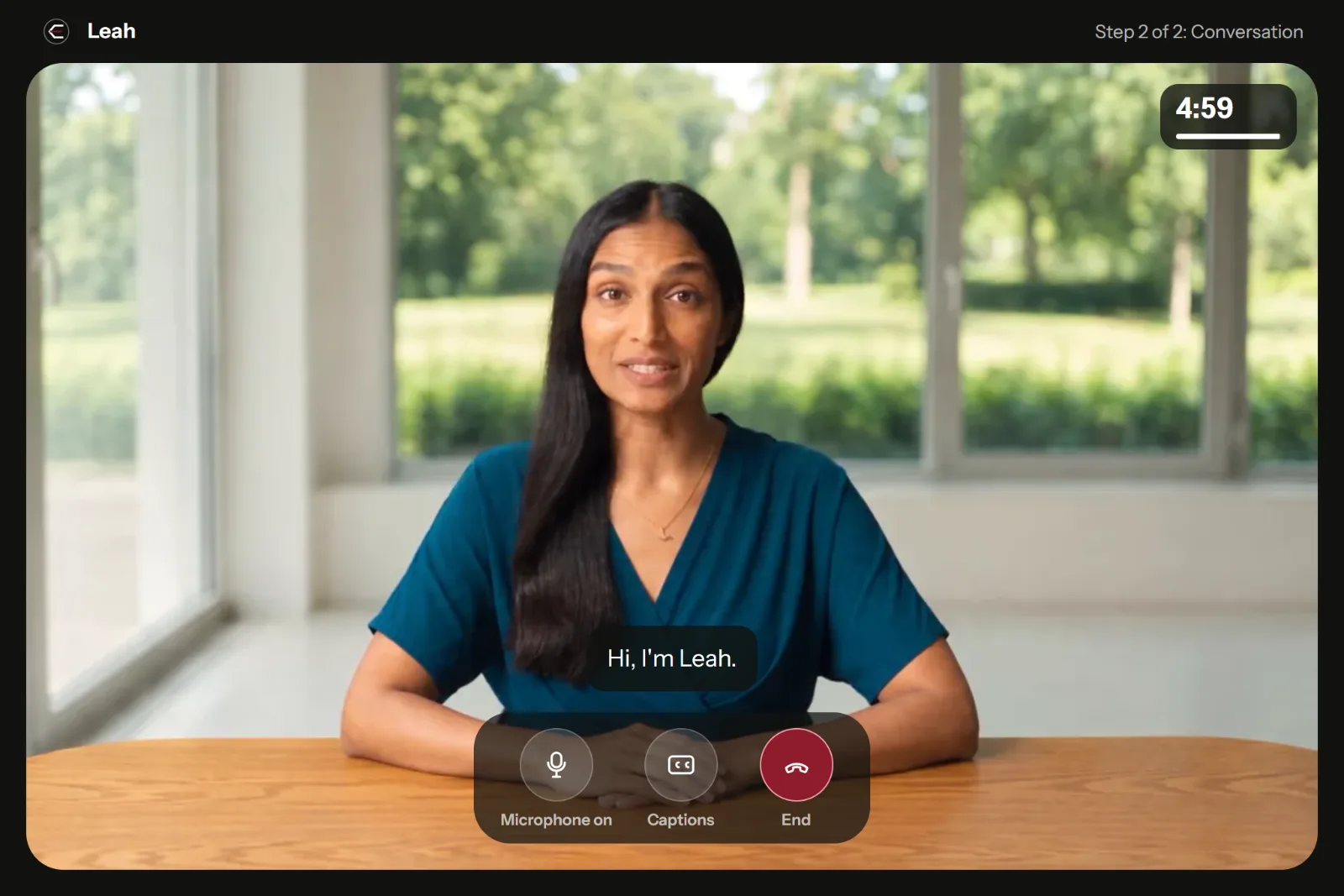
The conversation opens full screen, with the patient filling the frame and three controls at the bottom. This chapter describes each part and what happens when something goes wrong.
The conversation screen and its controls.
1The patient
2Step 2 of 2: the conversation
3The clock: time left
4Microphone: mute, or hold to talk
5Captions on or off
6End the conversation
The patient fills the screen. “Step 2 of 2: Conversation” sits at the top right, the clock below it. At the bottom are the microphone , Captions and End .
5.1 Connecting
After you press Start conversation, the screen says “Connecting to Leah…” in the top-left corner. Connecting usually takes a few seconds. Your browser may ask once more for the microphone: allow it.
When the patient is connected the status disappears, the patient appears and says their first line. Your time starts now.
5.2 The clock
The clock shows the time left, with a thin line under it that shortens as time passes. Until the patient connects it shows the full length and does not move.
The screen warns you twice: “One minute left.” and “30 seconds left.” When the clock reaches zero you see “Time is up.”, Elvyn ends the conversation and opens its summary.
The clock follows the time on Elvyn’s server, so it stays right even if your computer’s clock is wrong.
5.3 Captions
Captions show what the patient says, above the controls. They are on when the conversation starts. Press Captions to hide or show them.
5.4 The microphone
The microphone control depends on the mode you chose on Prepare:
Open microphone: the button mutes and unmutes you. Its label reads Microphone on or Microphone muted. While you are muted, the patient hears nothing.
Push to talk: press and hold Hold to talk while you speak, and release it when you finish. While you hold it, the label reads “Listening…”. With a keyboard, focus the button and hold Space or Enter.
Good to know
Let the patient finish before you speak. If you talk over the patient, the patient may stop, or answer only part of your question.
5.5 Ending the conversation
The end dialog.
1How long you have talked
2Keep talking: back to the patient
3End now: opens the summary
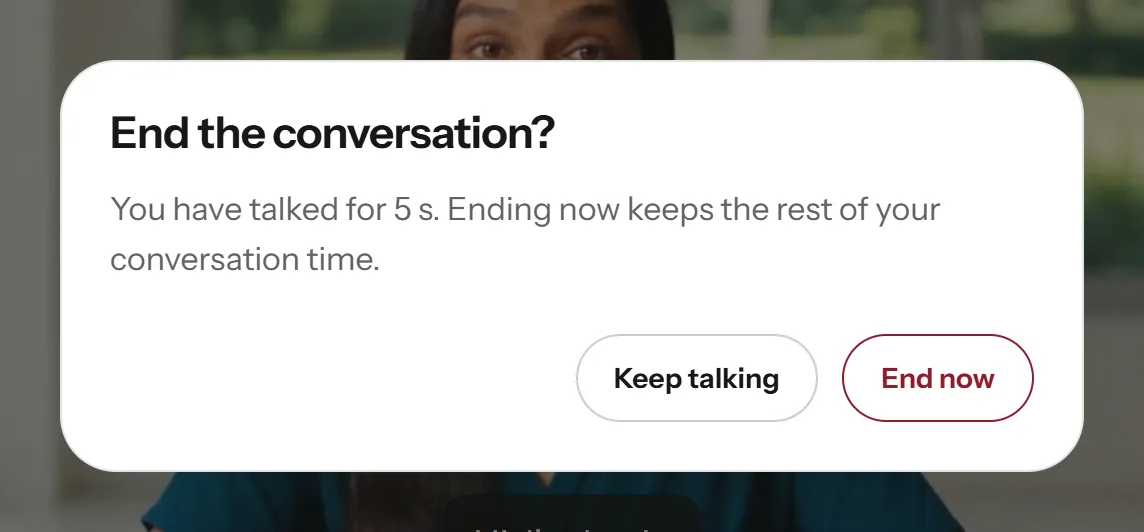
Press End (the red control) when you have finished. Elvyn asks End the conversation? and tells you how long you have talked . Press End now to end, or Keep talking to go back.
Ending early keeps the rest of your conversation time. The summary opens: see 6. After the conversation.
5.6 When something interrupts you
A conversation cannot be paused or resumed. Anything that takes you away from the conversation screen ends it.
What happens
Result
You reload the page
The conversation ends. The summary says “Reloading the page ended this conversation after 1 min 12 s, because a conversation cannot continue after a reload.”
You close the tab or the browser
Most browsers ask you to confirm first; some do not. Leaving sends Elvyn a request to end the conversation. If that request does not arrive, Elvyn’s server ends the conversation within minutes, and the time until then can be charged.
The connection to the patient drops
You see “The connection to Leah was lost.” Press End and see your summary.
Elvyn loses contact with its server
After three failed checks in a row (about 45 seconds), you see “Elvyn lost contact with the server, so the conversation was ended.”
Your time runs out
The conversation ends at zero and the summary opens.
Course staff end it
The conversation ends. The summary says “Course staff ended this conversation after 2 min 5 s.”
You are charged the time the avatar service reports for the conversation (see 3.2.1 How you are charged). After an interruption you can start a new conversation from Cases as long as you have conversation time left. If Cases says Still closing, the avatar service has not confirmed the end yet: wait a little, or press Try to end it now.
Part one: for students
6. After the conversation
When a conversation ends, Elvyn opens its summary. You can come back to it later from Sessions.
Tour
After the conversation: transcript and survey
Ending, the summary page, the transcript download, the survey and Sessions.
Step 1 of 7: Press End now to finish and open your summary, or Keep talking to go back to the patient.
Step 1 of 7
Press End now to finish and open your summary, or Keep talking to go back to the patient.
Your summary opens with who you talked with and for how long.
Check your time left in this cohort after this conversation.
Press Download transcript to save what was said as a text file.
Download the transcript by this date, the last day it is available.
Answer the short anonymous survey below; every question is optional.
Open Sessions later to see each conversation and its summary again.
6.1 The summary
The summary of one session.
1How long you talked
2Your conversation time in this cohort
3Transcript
4Survey
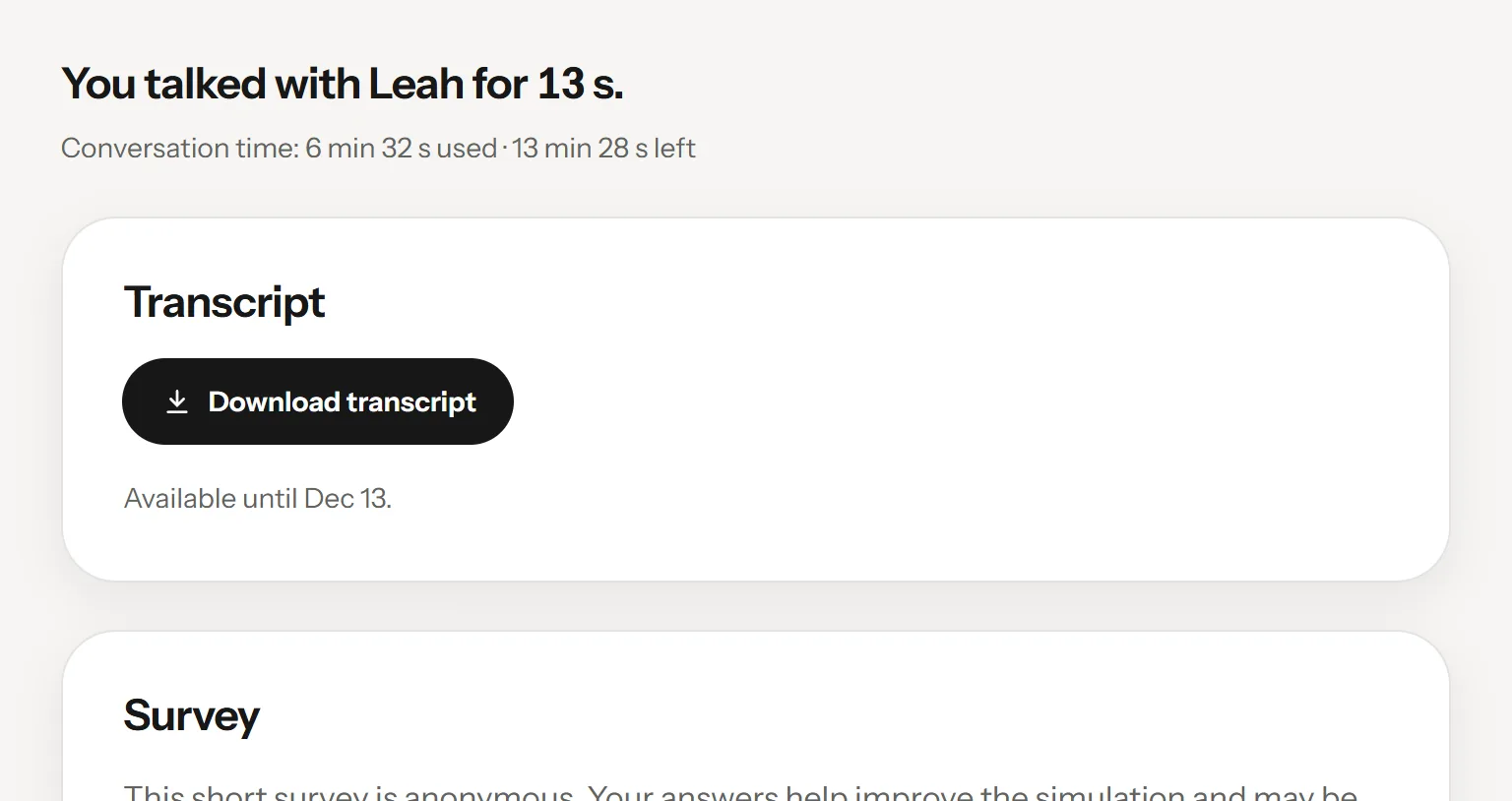
The page’s title names the patient and the date, under Sessions, for example “Sessions / Leah, Nov 12”. Its first sentence says how long you talked, for example “You talked with Leah for 13 s.”, followed by your time in that cohort : “Conversation time: 5 min 25 s used · 14 min 35 s left”. The time left is the same figure as Conversation time left on Cases.
If the conversation did not end the usual way, one sentence says why: you reloaded the page, course staff ended it, or it did not start. Under it are the blocks Transcript , Survey , and what to do next.
6.2 What you were charged
The first sentence has one of four forms:
You see
Meaning
“You talked with Leah for 13 s.”
The charge is final.
“You talked with Leah for up to 1 min 12 s. The final figure can only be lower.”
An estimate, shown as pending. The avatar service has not reported the length yet.
“This conversation with Leah holds 5 min until the avatar service confirms the end.”
The avatar service has not confirmed that the conversation ended. Your time is held, not spent.
“This conversation did not start, so no time was used.”
Nothing was charged.
The final figure is the length the avatar service reports, which can be lower than your clock. See 3.2.1 How you are charged.
If the summary says Still closing, you can leave the page. A new conversation can start once the avatar service confirms the end.
6.3 Downloading the transcript
The transcript block, ready to download.
1Download the text file
2The last day it can be downloaded
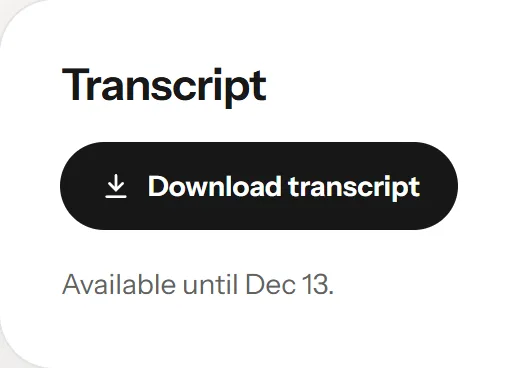
Press Download transcript to save the conversation as a text file. Under the button, “Available until December 12, 2026.” tells you the last day you can download it. Each line of the file has the time from the start, who spoke and what was said:
[00:01] Patient: Hello, thank you for seeing me.
[00:04] Student: Hello, what brings you in today?
Right after the end, the transcript may not be ready. The block then says “Getting your transcript ready…” and asks again by itself for up to ten minutes, then saves the file when it arrives. After that, press Try again, or come back later from Sessions.
Other messages:
Message
Meaning
“This conversation was not kept, so there is no transcript.”
Keep this conversation was off, or the cohort does not keep conversations.
“This transcript was deleted at the end of its keeping period.”
The keeping period is over. Elvyn no longer offers the text, and has asked the avatar service to delete it.
“The avatar service could not supply this transcript.”
Elvyn has no record of the text at the avatar service. There is no button to try again; if you expected a transcript, tell your course staff.
“The transcript could not be downloaded. Try again.”
The request failed. Press Download transcript again.
6.4 The survey
The short form, Elvyn’s own 11-question survey.
1Short, anonymous, every question optional
2Answer what you want
The Survey block asks for your opinion of this conversation. Every question is optional. See 3.5 The survey and the short form for what is recorded and where.
When your cohort has a SurveyMonkey survey in the language of your conversation, it appears inside the page, labelled “Anonymous survey, about two minutes”. When you have submitted it, press I finished the survey. If the survey does not load, press Open in a new tab, or Use the short form instead.
Otherwise you get the short form : “11 questions, about 1 minute. Every question is optional.” Answer what you want and press Send answers at the bottom. You see “Thank you. Your answers were recorded anonymously.” The short form takes one set of answers per conversation.
If the summary says “The survey opens once the conversation has finished closing.”, come back a little later.
6.5 The wrap-up clip
A short video about how to write up what you learned. Its link sits in the last block; it opens in a player over the page. For now it exists in English only.
6.6 What next
The last block, What next, has Back to Cases for another conversation and All sessions for the list of them.
Part one: for students
7. Sessions
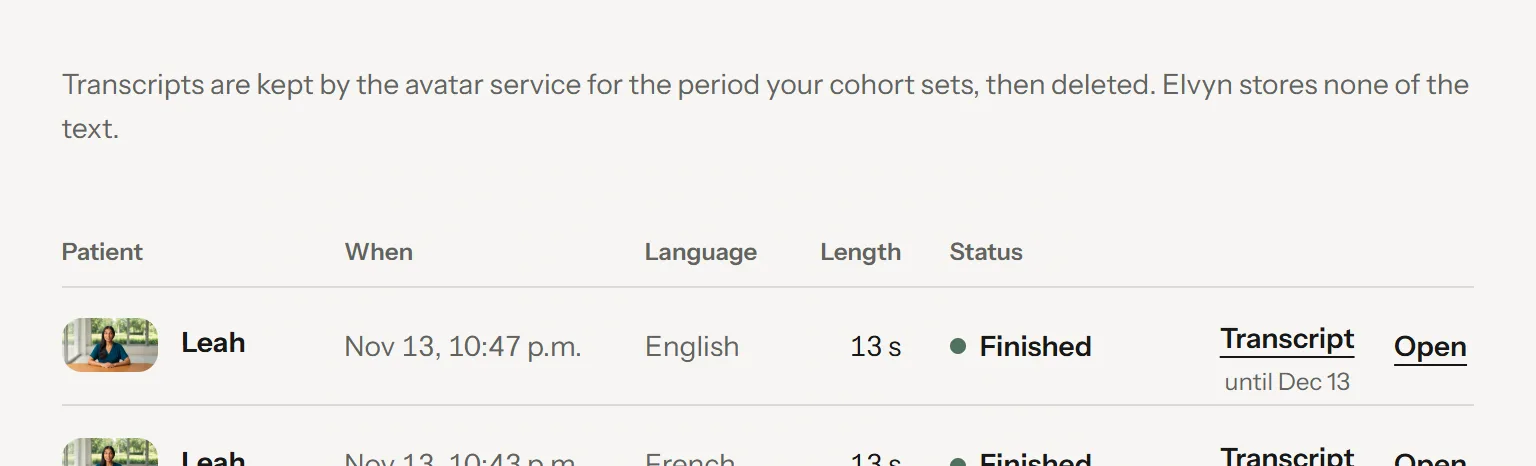
Sessions lists every conversation you have had, newest first. From here you download a transcript or open a session’s summary again.
The Sessions page.
1Where transcripts live, and for how long
2The patient
3Length charged
4Status
5Download the transcript
6Open the session’s summary
7.1 The list
The line at the top of the page says where transcripts live: they are kept by the avatar service for the period your cohort sets, then deleted, and Elvyn stores none of the text (see 3.3.1 Where the transcript is stored).
Each row is one conversation:
Column
What it shows
Patient
The patient’s portrait and name.
When
The date and time the conversation started.
Language
The language of the conversation.
Length
The time charged. A pending badge means the figure is not final yet and can only go down.
Status
How the conversation ended (see below).
On the right of each row, Transcript downloads the text, with the last day it is kept under it (“until Dec 12”), and Open shows the session’s summary, with the survey if you have not answered it yet.
The list shows 20 conversations per page: Older sessions shows the next ones, Back to the newest returns to the start. On a phone each row becomes a two-line card: the patient and the date, then the length and the actions.
7.2 Statuses
Status
Meaning
Finished
The conversation ended: you ended it, the time ran out, or the page was reloaded or closed.
Ended by staff
Course staff stopped the conversation from their Live page. You are charged the time the avatar service reports, up to the stop.
Did not start
The patient did not connect, or the avatar service failed. No time was charged.
In progress
The conversation is running now.
Closing
The conversation ended, and the avatar service has not confirmed it yet. See 9.7 “Still closing”.
7.3 When a transcript is available
The transcript column shows the Transcript button when Elvyn can ask the avatar service for the text. Otherwise it shows one quiet word or phrase:
You see
Meaning
What you can do
Transcript
The conversation was kept and its keeping period is not over.
Press it. If the text is not ready yet, the row says Transcript getting ready, asks again by itself, and saves the file when it arrives.
Transcript getting ready
The conversation is still running or closing.
Wait, then reload the page.
Download failed
The last request failed.
Press Try again.
Not kept
Keep this conversation was off, or the cohort does not keep conversations.
Nothing. Nobody can download it.
Deleted
The keeping period is over. Elvyn no longer offers the text and has asked the avatar service to delete it.
Nothing. Elvyn cannot recover it.
Unavailable
Elvyn has no record of the text at the avatar service, for example because the conversation did not start.
If you expected a transcript, tell your course staff.
Good to know
Download the transcripts you want to keep before their keeping period ends. After that, Elvyn cannot get them back.
Part one: for students
8. Account
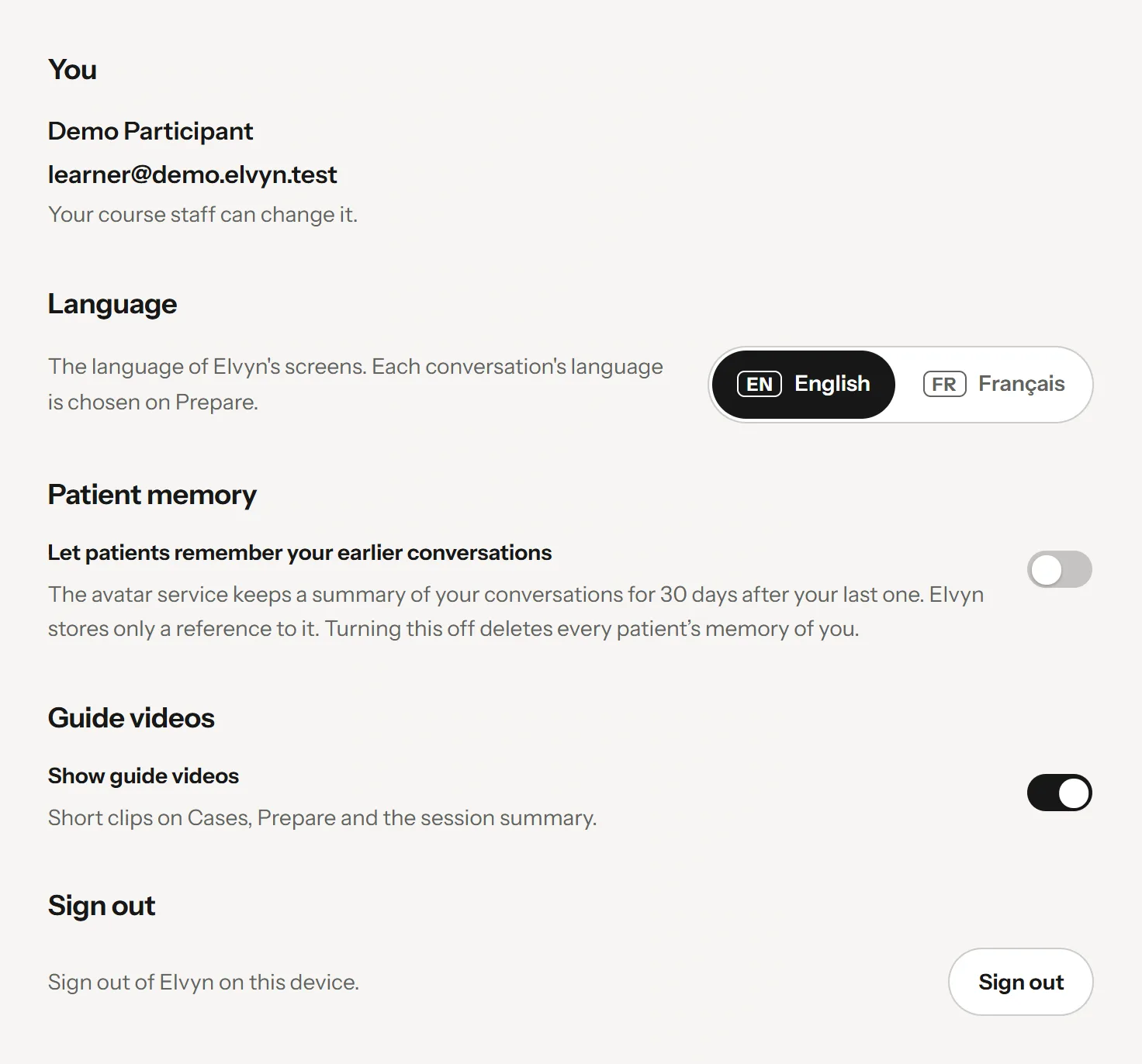
Account holds your settings. Each group has a title, one line that explains it, and its control on the right.
The Account page.
1Your email; your course staff can change it
2The language of the screens
3Patient memory, when the platform offers it
4Show or hide the guide videos
5Sign out
8.1 Your email
The group You shows your name and the email you sign in with, with the note “Your course staff can change it.” (staff read “A platform administrator can change it.”). You cannot change it yourself: see 8.7 Changing your email.
8.2 Language
Choose English or Français for Elvyn’s screens. The conversation language is chosen separately on each Prepare page (see 4.3 Language and microphone).
8.3 Patient memory
This group appears only when the platform offers patient memory. It holds the same switch as Prepare , Let patients remember your earlier conversations, with the same explanation. Turning it off asks for every patient’s memory of you to be deleted, after you confirm. See 3.4 Patient memory.
8.4 Guide videos
Elvyn shows short guide videos on Cases, Prepare and the session summary, such as Watch the walkthrough in the steps above the cases on your first visit. Turn Show guide videos off to hide them. The choice is saved in this browser only; another browser or device shows them again until you hide them there too.
Every guide video also stays available in Help.
8.5 Course staff
If you manage a cohort, the group Course staff has Open Course staff, which opens the Course staff area. The area switcher at the top of the sidebar, or the tile at the top left on a phone, leads there too (see 10. The Course staff area).
8.6 Signing out
Press Sign out . Do it on a shared or public computer when you finish. To sign in again you need a new code (see 2.1 Signing in).
8.7 Changing your email
You have one email in Elvyn, and it is how Elvyn recognises you. To change it, for example because your school address changed, ask your course staff. A platform administrator makes the change.
When your email changes:
Your conversation time, your sessions and your transcripts stay. They belong to you, not to the address.
From then on you sign in with the new address. The old one stops working once the sign-in service has been updated (see 16. People across the platform).
Good to know
Do not ask to be added again under a new address. That would create a second person with no minutes and no history, which your account cannot reach.
Part one: for students
9. Troubleshooting
Each section names a problem, its usual cause and what to do. If nothing here helps, write to your course staff with the time it happened and what you saw on screen.
9.1 The code email does not arrive
Wait a minute or two, then look in your junk or spam folder.
Check the address on the sign-in page. If it is wrong, press Use a different email.
Press Send a new code. If you see “Too many attempts. Wait a moment before trying again.”, wait a minute first.
School email systems sometimes hold messages from new senders for a while. Try again a little later.
9.2 “Your email is not on a course list”
You signed in with an address that is not on any course list. Press Sign out and use the address your course staff have, or ask them to add the one you used. See 2.2 When you are not on a list.
9.3 The microphone is blocked
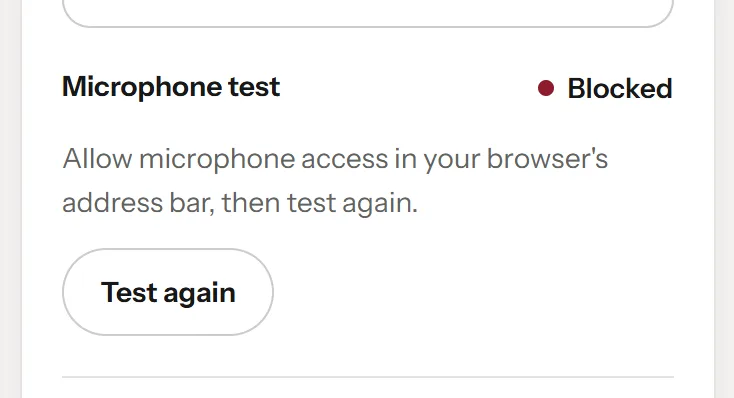
The microphone test says Blocked when your browser refused access, with what to do under it .
The microphone test when the browser has blocked the microphone.
1The status: Blocked or Not found
2What to do
3Test again once allowed
Click the icon at the left of the address bar (a lock or sliders).
Set Microphone to Allow for this site.
Press Test again .
If the test says Not found, no microphone is connected or another app holds it. Connect a headset, close apps that use the microphone (video calls, recorders), then press Test again. On a Mac or Windows computer, also check that the operating system lets the browser use the microphone.
9.4 You cannot hear the patient
Check your volume and the output device (headset or speakers).
Check that the browser tab is not muted.
Turn on Captions to read what the patient says while you fix the sound.
If the video does not move at all, the connection may have dropped: end the conversation and start again from Cases.
9.5 The patient does not answer
Open microphone: check that you are not muted. The label under the microphone button reads Microphone muted when you are.
Push to talk: hold Hold to talk for the whole sentence and release it at the end. The patient answers after you release.
Pause after you finish speaking. The patient waits for a short silence before answering.
Background noise can keep the patient waiting. Move somewhere quieter, or switch to Push to talk for your next conversation.
9.6 Stuck on “Connecting”
Connecting normally takes a few seconds. If it lasts more than a minute, press End, then start again from Cases. You are charged the length the avatar service reports, which is little or nothing when the patient did not appear; until it reports, the summary shows the time as pending. If it happens twice, try another network or browser, and tell your course staff.
9.7 “Still closing”
Your last conversation has ended on your side, but the avatar service has not confirmed it yet. Until it does, its time is held and you cannot start another. It usually clears by itself once the avatar service answers. On Cases, press Try to end it now to ask again.
9.8 The time looks wrong
The charge is lower than your clock. You are charged the length the avatar service reports, which can be shorter than the clock. See 3.2.1 How you are charged.
Some time shows as Being confirmed. The avatar service has not reported the length yet. If it is “taking longer than usual”, it settles when the service reports it. Time being confirmed can only go down.
You have fewer minutes than you expected. Ask your course staff; they can see your figures and add minutes.
9.9 The transcript is not ready
Right after a conversation the text can take a while to be ready. The summary asks again by itself for up to ten minutes. After that, press Try again, or come back later from Sessions. If the transcript says Not kept, nobody can download it: Keep this conversation was off. See 7.3 When a transcript is available.
9.10 The survey does not load
Some school networks or browser settings block the survey inside the page. Press Open in a new tab to answer it there, then come back and press I finished the survey. Or press Use the short form instead, which is Elvyn’s own anonymous form.
Reference: for everyone
18. Data and privacy reference
This chapter lists every kind of data involved in using Elvyn. Four places hold data: Elvyn’s database, the sign-in service (Clerk), the avatar service (LiveAvatar) and SurveyMonkey. Elvyn’s operator, RMGN, runs the first and holds the accounts for the other three.
Where Elvyn depends on another service to delete something, this chapter says what Elvyn asks for and when. Elvyn repeats a deletion request on its background pass, every five minutes, until the service confirms.
18.1 Where each kind of data lives
Data
Where
How long
Who can see it
How it is deleted
Email and optional name
Elvyn’s database
Until the person is erased, or removed before ever signing in
Course staff of the person’s cohorts; platform administrators
Erase person replaces the email and clears the name
Email (sign-in account)
Sign-in service
While the person has an account
Platform operator
Elvyn asks the sign-in service to delete the account on erasure, and when someone who never signed in is removed from their only cohort (if that request fails after a removal, the account can remain and the failure is logged); the old address is removed on an email change
Minutes and membership per cohort
Elvyn’s database
Kept; a membership with a session is not deleted
Course staff of that cohort; the person
Remove from this cohort (only without sessions); erasure suspends
Session record: patient, language, times, time charged, keep and staff settings
Elvyn’s database
Kept, for minutes and totals
The person; course staff of the cohort (Live)
Not deleted; after erasure it is linked to no identifiable person
Conversation text (transcript)
Avatar service
Downloadable for the cohort’s keeping period after the end (30 days by default) if kept; not downloadable at all if not kept
The person; course staff of the cohort only if staff access was on when it started
Elvyn asks the avatar service to delete it when the keeping period ends, as soon as the conversation ends if it was not kept, and on erasure; it repeats the request until the service confirms
Voice and video during the conversation
Streamed through the avatar service
Elvyn records neither
Nobody in Elvyn
Not stored by Elvyn
Patient memory (a summary)
Avatar service
Created only if the avatar service accepts the conversation; expires the keeping period after its creation or after the start of the latest conversation that used it
Nobody in Elvyn; the patient uses it
Elvyn asks the avatar service to delete it on expiry, when the person turns memory off, on erasure, and on Delete all patient memories
Memory reference and memory choice
Elvyn’s database
The reference as long as the memory; the choice until changed
Nobody in Course staff or Platform
The reference is removed once the memory’s deletion is confirmed; erasure sets the choice to off
Short-form answers
Elvyn’s database
Kept
Course staff of the cohort (CSV)
Not linked to anyone, so not deleted per person
Full survey answers
SurveyMonkey
As the survey owner decides
The survey owner
In SurveyMonkey
Survey code
Nowhere: computed when needed
Not stored
Course staff (the list of valid codes)
Nothing to delete
Audit log: who changed what, with reason codes
Elvyn’s database
400 days
Platform operator
Removed by the background pass once older than 400 days
Import progress (emails only)
Your browser tab
Until the import finishes or the tab closes
You
Discard, or closing the tab
Guide video preference
Your browser
Until you change it or clear the browser’s data
You
Clearing the browser’s data
18.2 Principles
Elvyn stores no conversation text. It fetches the transcript from the avatar service when someone downloads it, and passes it on without writing it to its database or its logs.
Staff access is decided before the conversation. The student sees, before starting, whether staff can read it. A later change to the setting does not open an earlier conversation.
Each staff read is logged. Every transcript download by staff writes an audit row.
Reason codes, not free text. Minute changes and stopped conversations record a code such as “technical-problem”, so no names reach the audit log.
The short form is anonymous by construction. An answer is stored with the week, case and language only, and one set of answers is accepted per finished conversation.
The SurveyMonkey survey follows its collector. Elvyn sends it no name or email; whether answers are anonymous and whether a person can answer twice are set in SurveyMonkey. The pilot’s collectors have anonymous responses on.
Survey codes identify conversations, not people. Only someone holding both Elvyn’s database and its secret key could link a code to a session.
18.3 What Elvyn does not do
It does not record audio or video, and does not turn on the camera.
It does not grade students or analyse what they said.
It does not send students’ names or emails to the avatar service or to SurveyMonkey.
It does not use real patient information. Students confirm before each conversation that they will not share any.
Reference: for everyone
19. Glossary
19.1 Terms
Term
Meaning
Area
One of Elvyn’s three parts: Practice, Course staff and Platform, each with its own sidebar. You see the areas your access gives you. See 10. The Course staff area.
Audit log
Elvyn’s record of what staff changed, with reason codes and no free text. Kept 400 days.
A person who manages a cohort: People, Live and Setup.
Patient memory
An optional summary of earlier conversations that a patient can recall, when the avatar service has created one. Stored at the avatar service. See 3.4 Patient memory.
A person who manages every cohort and has the Platform page. See 15. Platform controls.
Push to talk
A microphone mode where the patient hears you only while you hold the talk button.
Reset sign-in
Unlinking a person’s record from their sign-in account so the next sign-in links again.
Session length
The longest one conversation can last in a cohort. The real length is the lowest of this, the conversation time left and the plan limit.
Short form
Elvyn’s own anonymous survey of 11 questions, one set of answers per finished conversation.
Sign-in service
Clerk, which sends the email codes and holds sign-in accounts.
Still closing
A conversation that ended on your side but that the avatar service has not confirmed yet.
Survey code
A 16-character code on the survey link that lets researchers check an answer came from a real conversation, without saying whose. See 3.5.1 The code on the survey link.
Suspended
Blocked from starting conversations, in one cohort or everywhere. Minutes and history stay.